
SEO & AI Search
Technical SEO Mistakes Bloggers Make (And How to Fix Them)
Discover 12 technical SEO mistakes that quietly kill blog rankings. Diagnose and fix each issue using GSC and free tools. Start your audit now.
By Bibek Thapa · Published May 28, 2026 · Updated Jul 10, 2026 · 17 min read
Quick Answer
Quick Answer: The most common technical SEO mistakes bloggers make include uncontrolled index bloat from tag and category pages, misconfigured canonical tags from SEO plugins, crawl budget waste from thin archive pages, missing structured data, and slow Core Web Vitals caused by unoptimized images. Most are fixable within hours using Google Search Console and Screaming Frog.
Table of Contents
- What Are Technical SEO Mistakes? (And Why Bloggers Make More of Them)
- Why WordPress Amplifies Technical SEO Risk
- The SIGNAL Framework: A Blogger's Technical SEO Audit System
- Mistake #1: Index Bloat from Tag Pages and Category Archives
- How to Detect It
- Why It Hurts Rankings
- The Exact Fix
- Mistake #2: Canonical Tag Conflicts from Plugin Misconfiguration
- How to Detect It
- The Exact Fix
- Mistake #3: Crawl Budget Waste from Thin Archive Pages
- How to Detect It
- The Exact Fix
- Mistake #4: Blocking Critical JavaScript or CSS in robots.txt
- How to Detect It
- The Exact Fix
- Mistake #5: Redirect Chains and Redirect Loops
- How to Detect It
- The Exact Fix
- Mistake #6: Missing or Broken XML Sitemap Configuration
- How to Detect It
- The Exact Fix
- Mistake #7: Core Web Vitals Failures from Unoptimized Media
- LCP, INP, and CLS: What Bloggers Actually Break
- The Exact Fix
- Mistake #8: Mixed HTTP/HTTPS Content Warnings
- How to Detect It
- The Exact Fix
- Mistake #9: Orphaned Pages with No Internal Links
- How to Detect It
- The Exact Fix
- Mistake #10: Duplicate Content from Pagination
- How to Detect It
- The Exact Fix
- Mistake #11: Missing Article Schema, Author Schema, and FAQ Schema
- Why Schema Matters for AI Citation
- The Exact Fix
- Mistake #12: Blocking AI Crawlers in robots.txt
- GPTBot, ClaudeBot, PerplexityBot: Who You Are Locking Out
- The Exact Fix
- The Technical SEO Mistakes Checklist (Prioritized by Impact)
Quick Answer: The most common technical SEO mistakes bloggers make include uncontrolled index bloat from tag and category pages, misconfigured canonical tags from SEO plugins, crawl budget waste from thin archive pages, missing structured data, and slow Core Web Vitals caused by unoptimized images. Most are fixable within hours using Google Search Console and Screaming Frog.
You've written the posts. You've added the keywords. You've built internal links. And yet the rankings are stuck, or quietly sliding backward.
It's probably not your content. Most bloggers stuck in this position have technical SEO mistakes running silently underneath every page they publish. Not the kind of errors that throw obvious warnings, either. These are structural problems baked into default settings, plugin configurations, and platform behaviors that most SEO guides never cover because those guides were written for developers, not bloggers.
This article covers 12 of them. For each one: what it is, how to find it, and exactly how to fix it. No developer needed.
What Are Technical SEO Mistakes? (And Why Bloggers Make More of Them)
Technical SEO mistakes are errors in a website's infrastructure, covering crawlability, indexation, page speed, redirect structure, and structured data, that prevent search engines from efficiently finding, reading, and ranking your pages.Mistake #1 fix, after "Submit the updated sitemap in Google Search Console under Sitemaps
Bloggers are especially exposed for two reasons: platform defaults and plugin complexity.
WordPress powers roughly 43% of all websites and ships with settings that create indexation problems immediately. Tag archives, author pages, date-based archives, and comment pagination pages all get indexed by default. Most bloggers never touch those settings. Within a year of publishing, a 100-post blog can accumulate 400 to 600 low-value indexed URLs, pulling crawl budget toward thin pages that produce no organic traffic.
Misconfigure one canonical setting in Yoast or Rank Math and you've got conflicting signals telling Google two different things about which URL is authoritative. These are not edge cases.
Why WordPress Amplifies Technical SEO Risk
WordPress's plugin ecosystem creates a specific problem: multiple tools competing to control the same technical outputs. Your SEO plugin, your caching plugin, your CDN, and your page builder can all generate canonical tags, and when they disagree, Google gets contradictory instructions. Add JavaScript that Googlebot can't render and pages loading at 7 seconds that should load in 1.5, and you've got a site fighting against itself.
The fixes are not complicated. But you have to know where to look, and most of the guides that could help you are aimed at people who already know what a crawl budget is.
The SIGNAL Framework: A Blogger's Technical SEO Audit System
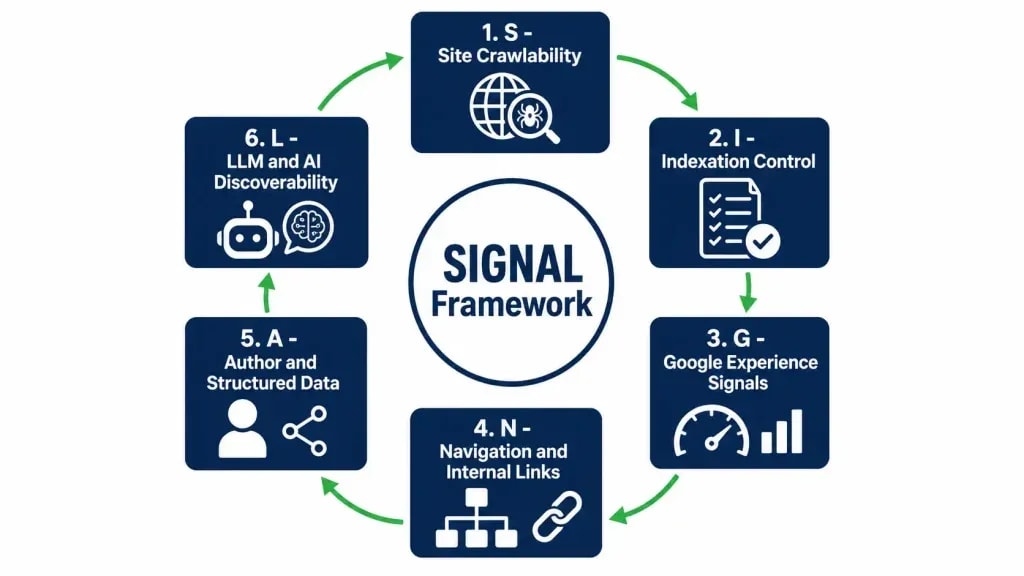
Before working through the mistakes below, use the SIGNAL Framework to sequence your audit. Fixing Core Web Vitals on a page that isn't even indexed is wasted time. The framework follows the order in which Google actually processes your site.
Start with S and I. If Google cannot crawl and index your pages, every other optimization is invisible to it.
Mistake #1: Index Bloat from Tag Pages and Category Archives
Key Insight: Index bloat is the most common technical SEO problem on content blogs, and it comes almost entirely from WordPress default settings that most bloggers never touch.
Index bloat happens when Google indexes hundreds or thousands of low-value pages: tag archives, author pages, date-based archives, each containing little or no unique content. A blog with 150 posts can have more than 1,000 indexed URLs if these archives go uncontrolled.
How to Detect It
- Open Google Search Console, go to Index, then Pages
- Filter by "Not indexed" and look for "Duplicate without user-selected canonical" errors
- Run
site:yourdomain.com/tag/in Google Search and count the results - Open Screaming Frog, crawl your site, and filter by URL path
If you see hundreds of /tag/, /author/, /date/, or /page/2/ URLs indexed, you have index bloat.

Why It Hurts Rankings
Google allocates a finite crawl budget to each website. When Googlebot burns that budget crawling empty tag archives and single-post author pages, it has less capacity to re-crawl your actual content. New posts can take days or weeks to get indexed. Crawl frequency on existing pages drops. Every thin page in your index pulls down your site's average content quality in Google's assessment.
The Exact Fix
In Yoast SEO: Yoast → Search Appearance → Taxonomies → Tags → set to "No (Don't show in search results)"
In Rank Math: SEO → Titles & Meta → Tags → set indexing to noindex
Then:
- Remove tag, author, and date archive pages from your XML sitemap
- Submit the updated sitemap in Google Search Console under Sitemaps
- For the worst offenders, request temporary removal via Google Search Console → Removals while waiting for Googlebot to re-crawl naturally
Mistake #2: Canonical Tag Conflicts from Plugin Misconfiguration
Key Insight: Running two SEO plugins simultaneously, or having one plugin conflict with a CDN or caching layer, produces multiple canonical signals that contradict each other. Google stops trusting your URL preferences entirely.
A canonical tag (<link rel="canonical" href="...">) tells Google which URL is the authoritative version of a page. Problems start when your SEO plugin, your theme, your CDN, and your caching plugin each try to set canonical tags on their own, producing different answers.
How to Detect It
- Open Chrome DevTools → View Page Source on any post → search for
rel="canonical" - If you see more than one canonical tag, or a canonical pointing to a URL different from the page you're viewing, there is a conflict
- In Screaming Frog: Directives → Canonical → filter for "Canonical Points to Different URL" or "Multiple Canonicals"
The Exact Fix
- Audit every plugin that can modify canonical output: SEO plugins, CDNs like Cloudflare with Canonical settings, some page builders
- One plugin handles canonical output. That is the rule. Usually it is your primary SEO plugin
- In Cloudflare: check Page Rules and Cache Rules for any canonical header injection and disable it
- Test using Google's URL Inspection Tool in GSC: compare "Google-selected canonical" with "User-declared canonical." They must match
- If they do not match, fix the conflict in your SEO plugin settings and re-inspect
Mistake #3: Crawl Budget Waste from Thin Archive Pages
Key Insight: WordPress date archives, feed URLs, and comment pagination pages are the most overlooked crawl budget drains on content blogs, and they appear in almost none of the standard SEO tutorials written for bloggers.
Beyond tag and category pages, WordPress generates several URL types that consume crawl budget without ever ranking for anything:
- Date archives:
/2024/,/2024/03/ - Post type feeds:
/feed/,/comments/feed/ - Comment pagination:
/post-name/comment-page-2/ - Search result pages:
/?s=keyword - Login and admin paths that are not properly blocked
How to Detect It
In Screaming Frog: Configuration → Spider → Advanced → enable "Crawl outside of start folder," then look for /feed/, /comments/, and /?s= patterns in your crawl results.
In Google Search Console: URL Inspection → test /feed/. If Google shows it as indexed, fix it.
The Exact Fix
Add the following to your robots.txt:
Disallow: /feed/ Disallow: /?s= Disallow: /wp-comments-post.php
For date archives in Yoast: Search Appearance → Archives → Date Archives → noindex.
One important caution: do not disallow CSS and JavaScript directories in robots.txt. Google needs to render those files to evaluate your page experience. That mistake is covered in Mistake #4.
Mistake #4: Blocking Critical JavaScript or CSS in robots.txt
Key Insight: One Disallow: /wp-content/ line in robots.txt prevents Googlebot from rendering your pages correctly, and Google ranks you based on what it can see, which may be almost nothing.
Modern websites build their visual output through JavaScript and CSS. If Googlebot cannot access /wp-content/themes/ or /wp-content/plugins/, it cannot render your pages and may classify them as thin or empty, regardless of what your actual content says.
How to Detect It
- Go to Google Search Console → Settings → Crawl Stats → Open Report
- Look for CSS and JavaScript files flagged as "Blocked by robots.txt"
- Use URL Inspection → "Test Live URL" → "View Tested Page" → switch to the Screenshot tab. If the page looks broken or blank, Googlebot cannot render it
The Exact Fix
Open your robots.txt at yourdomain.com/robots.txt. Remove any Disallow rules that block:
/wp-content/themes//wp-content/plugins//wp-includes/
These must be crawlable. To protect sensitive configuration, block specific files like /wp-config.php, not entire asset directories.
Mistake #5: Redirect Chains and Redirect Loops
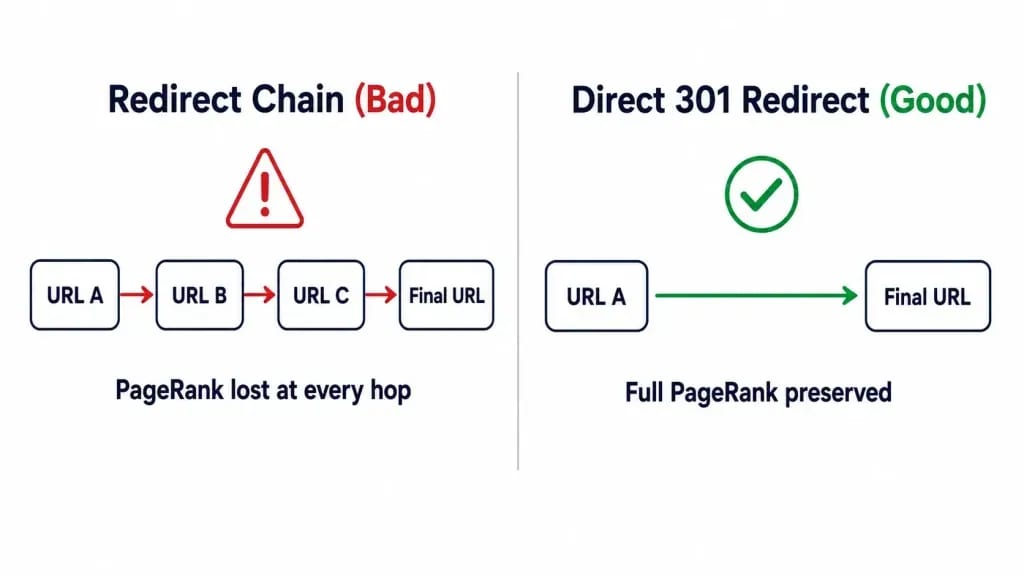
Key Insight: Each extra hop in a redirect chain reduces the PageRank delivered to the final destination URL. A three-hop chain can lose 20 to 30% of the original page's link equity before it reaches the page you actually want ranked.
A redirect chain exists when URL A redirects to URL B, which redirects to URL C. It happens constantly on blogs. An old post gets a new URL after a restructure, then the new URL moves again during a domain migration, and the cleanup step gets skipped. Nobody notices because the page still loads. The link equity leaks quietly.
How to Detect It
In Screaming Frog: Bulk Export → Response Codes → filter by 301 and 302 → check the "Redirect Chain Length" column. Any value above 1 is a problem.
In Ahrefs: Site Audit → All Issues → Redirect → "Redirect chain"
The Exact Fix
Map every redirect chain and update it so each old URL points directly to the final destination in a single 301 redirect. Update the redirect map in your .htaccess file or in Rank Math's Redirection module. Test every redirect with httpstatus.io afterward to confirm single-hop resolution.
Mistake #6: Missing or Broken XML Sitemap Configuration
Key Insight: A sitemap that includes noindex pages, returns a 404, or sits unsubmitted in Google Search Console sends contradictory indexation signals. A broken sitemap is worse than no sitemap.
How to Detect It
- Visit
yourdomain.com/sitemap.xml. A 404 or blank page means it is broken - In GSC → Sitemaps → check the Status column for errors
- Crawl your sitemap with Screaming Frog: File → Crawl New Configuration → enter the sitemap URL → check whether any noindex pages are appearing in it
The Exact Fix
- In Yoast or Rank Math, regenerate your sitemap with only indexable URLs included
- Confirm tag pages, author pages, and date archives are excluded
- Submit the clean sitemap in GSC → Sitemaps → Add/Test Sitemap
- Add a
Sitemap:directive to your robots.txt pointing to the sitemap URL
Mistake #7: Core Web Vitals Failures from Unoptimized Media
Key Insight: On most blogs, roughly 90% of Core Web Vitals failures trace back to two things: a hero image that is not preloaded and a third-party script (usually analytics, ads, or social share buttons) loading in the main thread.
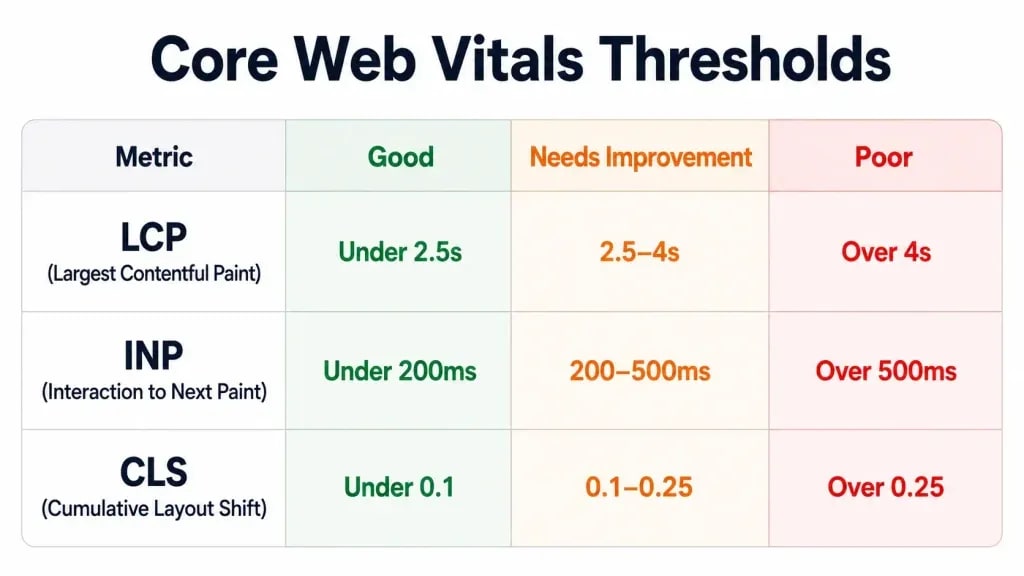
Core Web Vitals are Google's page experience metrics and confirmed ranking signals:
LCP, INP, and CLS: What Bloggers Actually Break
LCP fails because the hero image is large, uncompressed, and not preloaded.
INP fails because third-party scripts (social share buttons, chat widgets, ad networks) block the main thread. The page looks loaded but is not actually interactive.
CLS fails because images lack explicit width and height attributes. When they finally load, they push the layout around.
The Exact Fix
For LCP:
- Add
fetchpriority="high"andloading="eager"to your hero image tag - Serve images in WebP format; keep hero images under 120KB
- Use a CDN to reduce server response time
For INP:
- Defer non-critical third-party scripts using
<script defer> - Audit active plugins and remove any that inject frontend JavaScript you do not actually use
For CLS:
- Set explicit
widthandheightattributes on every image - Reserve space for ad units with CSS aspect-ratio containers
Test in PageSpeed Insights at pagespeed.web.dev and compare the results against Google's Core Web Vitals documentation. Target 90 or above on both mobile and desktop. Mobile is what Google scores you on.
Mistake #8: Mixed HTTP/HTTPS Content Warnings
Key Insight: One HTTP image, script, or stylesheet on an HTTPS page triggers a mixed content warning in browsers. It reduces user trust, can trigger browser security flags, and sends a weak security signal to Google.
How to Detect It
Open Chrome DevTools → Console tab on any page. Mixed content warnings appear as yellow warnings prefixed with "Mixed Content."
In Screaming Frog: Security → HTTP URLs on HTTPS Pages
The Exact Fix
- In Cloudflare: SSL/TLS → Edge Certificates → enable "Always Use HTTPS" and "Automatic HTTPS Rewrites"
- In WordPress: use the Better Search Replace plugin to update all
http://yourdomain.comreferences tohttps://yourdomain.comin the database - Update any hardcoded HTTP URLs in your theme's CSS and template files manually
Mistake #9: Orphaned Pages with No Internal Links
Key Insight: A page with no internal links pointing to it is functionally invisible to both Googlebot and users. A well-written post with strong keyword targeting does not rank if PageRank cannot flow to it through your internal link structure.
How to Detect It
In Screaming Frog: Reports → Orphan Pages. Configure with your XML sitemap as the source. The report will surface every page in your sitemap that has zero internal links pointing to it.
In Ahrefs: Site Audit → All Issues → Links → "Orphan page"
The Exact Fix
For each orphaned page:
- Find 2 to 3 topically related posts already published on your blog
- Edit those posts to include a contextual internal link to the orphaned page, with descriptive anchor text rather than "click here" or "read more"
- If a category hub or pillar page exists for that topic, add the orphaned page there as well
Going forward: every new post you publish should receive internal links from at least two existing posts before you hit publish.
Mistake #10: Duplicate Content from Pagination
Key Insight: WordPress's <!--nextpage--> feature splits a single post across multiple URLs, each sharing near-identical content. The original post's ranking signals get divided across pages that should never have existed separately.
The same problem appears in paginated comment sections (/post-name/comment-page-2/) and infinite scroll implementations that generate multiple indexed URLs for the same content.
How to Detect It
In GSC → Coverage → Excluded → "Duplicate without user-selected canonical." Check whether any of those flagged URLs are paginated post variants.
In Google Search: site:yourdomain.com/post-name. If you see /page/2/ or /comment-page- variants appearing in results, pagination is producing indexed duplicates.
The Exact Fix
For post pagination: stop using <!--nextpage-->. Publish posts as single, complete URLs.
For comment pagination: in Yoast, go to Search Appearance → Content Types → Posts → Advanced → Canonical. Set paginated pages to self-referencing canonicals pointing to page 1.
In your .htaccess or via plugin, redirect all /comment-page-N/ URLs back to the root post URL with a 301 redirect.
Mistake #11: Missing Article Schema, Author Schema, and FAQ Schema
Key Insight: Schema markup is not a ranking trick. It is the structured data layer that tells Google, ChatGPT, Gemini, and Perplexity who wrote your content, when it was published, and where the authoritative answers are. Without it, your content competes on raw text quality with no credibility signals attached.
Why Schema Matters for AI Citation
AI systems parse structured data to verify source credibility before citing content in answers. Here is what each schema type communicates:
- Article schema tells AI systems there is a known author, a publication date, and a named publisher
- Author schema links the writer to a verifiable entity with credentials (a LinkedIn profile, a Google Scholar page, a personal site)
- FAQ schema surfaces specific question-and-answer pairs that AI can extract and cite directly
Without this markup, AI systems treat your content as anonymous, undated text. With it, you give them structured extraction hooks that meaningfully increase citation probability across every major AI platform.
The Exact Fix
In Rank Math: Schema → Article (enable, assign Author to the correct author entity)
In Yoast: FAQ schema requires Yoast SEO Premium or manual JSON-LD. Article schema with full author data requires manual implementation in free Yoast.
Manual JSON-LD example (add to your post's <head>):
{ "@context": "https://schema.org", "@type": "Article", "headline": "Your Article Title", "author": { "@type": "Person", "name": "Your Name", "url": "https://yourdomain.com/about" }, "publisher": { "@type": "Organization", "name": "Your Blog Name", "logo": { "@type": "ImageObject", "url": "https://yourdomain.com/logo.png" } }, "datePublished": "2026-06-01", "dateModified": "2026-06-22" }
Validate every schema implementation using Google's Rich Results Test at search.google.com/test/rich-results before publishing.
Mistake #12: Blocking AI Crawlers in robots.txt
Key Insight: If your robots.txt blocks GPTBot, ClaudeBot, PerplexityBot, or Google-Extended, you are opting out of every AI Overview, every AI-generated answer, and every AI citation opportunity across the fastest-growing discovery channels in search right now.
GPTBot, ClaudeBot, PerplexityBot: Who You Are Locking Out

Some security plugins and aggressive robots.txt templates block all unrecognized bots by default, including these. Many blogs are blocking AI crawlers right now without knowing it.
The Exact Fix
Open yourdomain.com/robots.txt and check for blanket Disallow rules like:
User-agent: * Disallow: /
Replace with explicit Allow entries for AI crawlers:
User-agent: GPTBot Allow: / User-agent: ClaudeBot Allow: / User-agent: PerplexityBot Allow: / User-agent: Google-Extended Allow: / User-agent: OAI-SearchBot Allow: /
Then consider implementing llms.txt at yourdomain.com/llms.txt. It is a plain-text file that tells AI systems which pages on your site are highest-value for citation, what your site covers, and who wrote it. It is a newer standard, but sites that implement it early are building a structural advantage in AI search visibility that will be much harder to replicate in two years.
The Technical SEO Mistakes Checklist (Prioritized by Impact)
Stage 1: Site Crawlability
- [ ] robots.txt is not blocking CSS or JS directories
- [ ] robots.txt explicitly allows GPTBot, ClaudeBot, PerplexityBot, and Google-Extended
- [ ] XML sitemap exists, returns a 200 status, and is submitted in GSC
- [ ] XML sitemap contains only indexable URLs
- [ ] WordPress "Discourage search engines from indexing this site" setting is off
Stage 2: Indexation Control
- [ ] Tag pages set to noindex
- [ ] Author archive pages set to noindex
- [ ] Date archive pages set to noindex
- [ ] Feed URLs disallowed in robots.txt
- [ ] Comment pagination controlled (redirected or canonicalized to page 1)
- [ ] No canonical tag conflicts between plugins
- [ ] Paginated posts consolidated to single URLs
Stage 3: Google Experience Signals
- [ ] LCP is 2.5 seconds or less on mobile (tested in PageSpeed Insights)
- [ ] INP is 200ms or less (no render-blocking scripts in main thread)
- [ ] CLS is 0.1 or less (images have explicit dimensions)
- [ ] All pages served over HTTPS
- [ ] No mixed content warnings in Chrome DevTools
Stage 4: Navigation and Link Architecture
- [ ] No redirect chains longer than one hop
- [ ] No redirect loops
- [ ] No orphaned pages (every post has at least two internal links)
- [ ] 404 errors identified and resolved
Stage 5: Schema and Entity Signals
- [ ] Article schema on all blog posts
- [ ] Author schema linked to a verifiable author entity
- [ ] FAQ schema on FAQ sections
- [ ] BreadcrumbList schema on all pages
- [ ] All schema validated via Rich Results Test
Stage 6: AI Discoverability
- [ ] llms.txt implemented and current
- [ ] Author entity page exists with credentials and credibility signals
- [ ] AI crawlers explicitly allowed in robots.txt
- [ ] Author name, site name, and description consistent across About page, schema, and social profiles
Frequently Asked Questions
How do I know if my blog has technical SEO mistakes?
Run a free crawl using Screaming Frog (free up to 500 URLs) or open Google Search Console under Index → Pages. If more than 20% of your pages are excluded from the index, or if you have hundreds of tag and category archive URLs indexed with no unique content, there are technical issues present.
Does page speed actually affect blog rankings?
Yes. Core Web Vitals (LCP, INP, CLS) are confirmed Google ranking signals. An LCP above 4 seconds puts you in the "Poor" category, which is a measurable disadvantage in competitive SERPs. The most common LCP failure on blogs is an unoptimized hero image with no preload instruction.
Can a WordPress blog accidentally block Google?
It happens more often than most people realize. WordPress includes a setting under Settings → Reading labeled "Discourage search engines from indexing this site." If that box was checked during development and never unchecked before launch, Googlebot respects it and your entire site may be deindexed. Check this setting before anything else.
What is the difference between a 301 and 302 redirect, and why does it matter?
A 301 is permanent and passes approximately 97 to 99% of the originating page's PageRank to the destination URL. A 302 is temporary. Google may continue indexing the original URL because the redirect suggests the move is not final. Bloggers frequently use 302s during domain migrations or URL restructures, bleeding link equity without realizing it.
How does missing schema markup affect AI citation chances?
AI systems like ChatGPT, Gemini, and Perplexity prioritize structured, verifiable, entity-rich content when generating answers. Without Article schema (confirming authorship, publication date, and publisher), Author schema (linking the writer to a credible entity), and FAQ schema (surfacing specific extractable answers), your content is harder to parse and less likely to appear in AI-generated responses. Schema is both a Google ranking signal and a GEO visibility signal.
How long do technical SEO fixes take to affect rankings?
robots.txt and noindex fixes can reflect in Google's index within one to two weeks as Googlebot re-crawls affected pages. Core Web Vitals improvements take longer: Google uses a rolling 28-day window of CrUX field data, so a speed improvement today may not appear in ranking signals for up to four weeks. Index bloat cleanup can take two to four months to show full ranking recovery as Google re-evaluates your site's authority distribution across the cleaned-up URL set.
Should I noindex my tag pages?
For most blogs, yes. Unless a tag page aggregates genuinely useful, distinct content and has earned backlinks, it is a thin-content page that consumes crawl budget, risks creating duplicate content signals, and dilutes topical authority. Set tag pages to noindex and nofollow via Yoast or Rank Math, then remove them from your XML sitemap.
Sources and References

Written by
Bibek Thapa
AI-Powered Digital Growth Strategist
Bibek Thapa works across AI workflows, SEO, AI search optimization, content strategy, website growth, and productivity systems. Anobee documents practical lessons, tools, experiments, and systems for improving digital presence.
- AI workflows
- Digital growth
- SEO
- GEO
- AEO
- Content strategy
- Website growth


