
SEO & AI Search
Robots.txt Guide for Beginners: 10 Easy SEO Tips (2026)
This robots.txt guide for beginners shows you how to create, optimize, and test your file. Learn SEO best practices, real examples, and mistakes to avoid.

By Bibek Thapa · Published May 10, 2026 · Updated Jul 14, 2026 · 12 min read
Quick Answer
You've probably seen "check your robots.txt" in an SEO guide and skipped past it. Don't. This file sits at the root of your site and tells Google which pages to crawl. Get it wrong and your most important content can drop out of search entirely.
Table of Contents
- What Is a Robots.txt File?
- How Does Robots.txt Actually Work?
- What Robots.txt Does Not Do
- Why Robots.txt Matters for SEO
- Robots.txt and Crawl Budget
- Does Robots.txt Directly Affect Rankings?
- Robots.txt Syntax: What You Need to Know
- User-agent
- Disallow
- Allow
- Crawl-delay
- Sitemap
- Wildcards and Pattern Matching
- Robots.txt Examples for Different Site Types
- Blog
- E-commerce Site
- WordPress Site
- Allow Everything (Default for New Sites)
- How to Create a Robots.txt File
- Method 1 - Manual Creation
- Method 2 - WordPress Plugins
- Where the File Must Go
- How to Test Your Robots.txt File
- Google Search Console
- Screaming Frog
- Bing Webmaster Tools
- The SAFE Robots.txt Framework
- S - Scan Sensitive Areas
- A - Allow Important Content
- F - Facilitate Crawler Efficiency
- E - Evaluate and Test Regularly
- 10 Robots.txt Best Practices Every Beginner Should Follow
- Common Robots.txt Mistakes (and How to Fix Them)
- Mistake 1 - Blocking the Entire Site
- Mistake 2 - Trying to Hide Pages from Google
- Mistake 3 - Blocking CSS and JavaScript
- Mistake 4 - Case-Sensitive Errors
- Mistake 5 - Noindex Directives in Robots.txt
- Robots.txt vs. Robots Meta Tag
- Expert Insight: 5 Observations on Robots.txt and SEO
- Robots.txt Checklist Before Going Live
- Your Robots.txt Is a Signal, Not a Lock
You've probably seen "check your robots.txt" in an SEO guide and skipped past it. Don't. This file sits at the root of your site and tells Google which pages to crawl. Get it wrong and your most important content can drop out of search entirely.
This robots.txt guide for beginners covers what the file does, how to write one, real examples for blogs and e-commerce sites, and the mistakes that cost people rankings.
What Is a Robots.txt File?
A robots.txt file is a plain text file stored at the root of your website that tells search engine crawlers which pages to visit and which to skip. It lives at a fixed URL: https://yourdomain.com/robots.txt. Every major search engine, Google, Bing, Yandex, DuckDuckGo, checks this file before crawling your site.
The file follows the Robots Exclusion Protocol, a standard in use since 1994.
Here's a bare-minimum example:
User-agent: * Disallow: Sitemap: https://yourdomain.com/sitemap.xml
That tells every crawler: crawl everything, and here's where to find the sitemap. For most beginner blogs, that's all you need.
How Does Robots.txt Actually Work?

Before Googlebot visits a single page on your site, it fetches your robots.txt file first. It reads the rules. If a page is disallowed, Googlebot skips it. The check happens in milliseconds, but mistakes in that file ripple across your entire site.
What Robots.txt Does Not Do
Two misconceptions cause real damage.
Robots.txt does not prevent indexing. If Google has already indexed a page and you block it in robots.txt afterward, that page can still appear in search results. Robots.txt controls crawling. A noindex meta tag controls indexing. They are not the same thing.
Robots.txt is not a privacy tool. The file is public. Your competitors, curious users, and every bot on the internet can read it by visiting yourdomain.com/robots.txt. If you list restricted URLs to block them, you publish those URLs to anyone who looks.
Why Robots.txt Matters for SEO
Robots.txt matters for SEO because it controls how search engines spend their crawl budget on your site. Done well, it steers Google toward your best content. Done poorly, it blocks important pages from ever being crawled.
Robots.txt and Crawl Budget
Crawl budget is the number of pages Googlebot will crawl on your site in a given period. For a blog with 50 posts, crawl budget rarely limits you, Google finds everything. For larger sites with thousands of product pages or CMS-generated URLs, budget becomes a real constraint.
When you block low-value pages in robots.txt, admin interfaces, search result pages, duplicate content from URL parameters, you free up budget for your actual content. On mid-sized WordPress sites, crawlers often burn through budget on /wp-admin/, tag archives, and paginated pages. A few targeted Disallow rules redirect that budget toward your posts and product pages. For deeper strategy, read our guide on crawl budget optimization.
Read Google's crawl budget documentation for the official breakdown.
Does Robots.txt Directly Affect Rankings?
Not directly. Robots.txt doesn't give a page a ranking boost. But it shapes what Google knows about your site. If your robots.txt blocks CSS and JavaScript files, Google renders your pages as broken. Pages that look broken in Google's renderer tend to rank accordingly.
Robots.txt Syntax: What You Need to Know
Robots.txt uses five main directives.
User-agent
Identifies which crawler the rules apply to.
User-agent: * # all crawlers User-agent: Googlebot # Google only User-agent: Bingbot # Bing only
Disallow
Tells a crawler to skip a specific URL or path.
Disallow: /admin/ # blocks the /admin/ directory Disallow: /private-page # blocks a single page Disallow: / # blocks the entire site - dangerous
Allow
Permits crawling of a specific URL within a blocked directory.
Disallow: /wp-admin/ Allow: /wp-admin/admin-ajax.php
The second line creates an exception for a file WordPress themes need to function.
Crawl-delay
Requests a pause between crawler requests. Google doesn't honor this directive officially, but Bingbot does, see Bing Webmaster Guidelines.
Crawl-delay: 10
Use it sparingly on servers with heavy traffic.
Sitemap
Points search engines to your XML sitemap.
Sitemap: https://yourdomain.com/sitemap.xml
Add this line even if you've submitted your XML sitemap in Google Search Console. It's an extra discovery signal with no downside.
Wildcards and Pattern Matching
Robots.txt supports two wildcard characters:
*matches any sequence of characters$matches the end of a URL
Disallow: /*?* # blocks all URLs with a query string Disallow: /*.pdf$ # blocks all PDF files
Google supports both wildcards. Not all crawlers do, test before relying on them.
Robots.txt Examples for Different Site Types
Blog
User-agent: * Disallow: /wp-admin/ Allow: /wp-admin/admin-ajax.php Disallow: /tag/ Disallow: /author/ Disallow: /?s= Sitemap: https://yourblog.com/sitemap.xml
This blocks admin areas, thin tag and author archive pages, and internal search result URLs, freeing crawl budget for your actual posts.
E-commerce Site
User-agent: * Disallow: /cart/ Disallow: /checkout/ Disallow: /account/ Disallow: /wishlist/ Disallow: /*?sort= Disallow: /*?filter= Sitemap: https://yourshop.com/sitemap.xml
E-commerce sites generate hundreds of near-duplicate URLs through sorting and filtering. Blocking parameter-based URLs protects budget for product pages.
WordPress Site
User-agent: * Disallow: /wp-admin/ Allow: /wp-admin/admin-ajax.php Disallow: /cgi-bin/ Disallow: /wp-includes/ Sitemap: https://yoursite.com/sitemap_index.xml
For a full walkthrough of WordPress setup, see our WordPress SEO guide.
Allow Everything (Default for New Sites)
User-agent: * Disallow: Sitemap: https://yourdomain.com/sitemap.xml
An empty Disallow: means "crawl everything." For a new blog, start here. Add restrictions only when you understand what you're restricting.
How to Create a Robots.txt File
Method 1 - Manual Creation
- Open a plain text editor: Notepad on Windows, TextEdit in plain text mode on Mac, or VS Code.
- Write your directives. Start with the minimal example above.
- Save as exactly
robots.txt, lowercase, no extra characters. - Upload it to your website's root directory via FTP, cPanel, or your hosting dashboard.
- Visit
https://yourdomain.com/robots.txtin a browser to confirm the file is live.
Method 2 - WordPress Plugins
RankMath: Go to RankMath → General Settings → Edit robots.txt. RankMath generates a virtual file, so no physical upload is needed.
Yoast SEO: Go to Yoast → Tools → File editor. Edit the robots.txt section and save.
Both plugins handle file delivery. You write the rules.
Where the File Must Go
The file must sit at the server root, the same level as your index.html or index.php. On most shared hosting, that's your public_html folder. If your site is at yourdomain.com, the file goes in public_html/, not in public_html/blog/.
How to Test Your Robots.txt File
Test after every change. No exceptions.
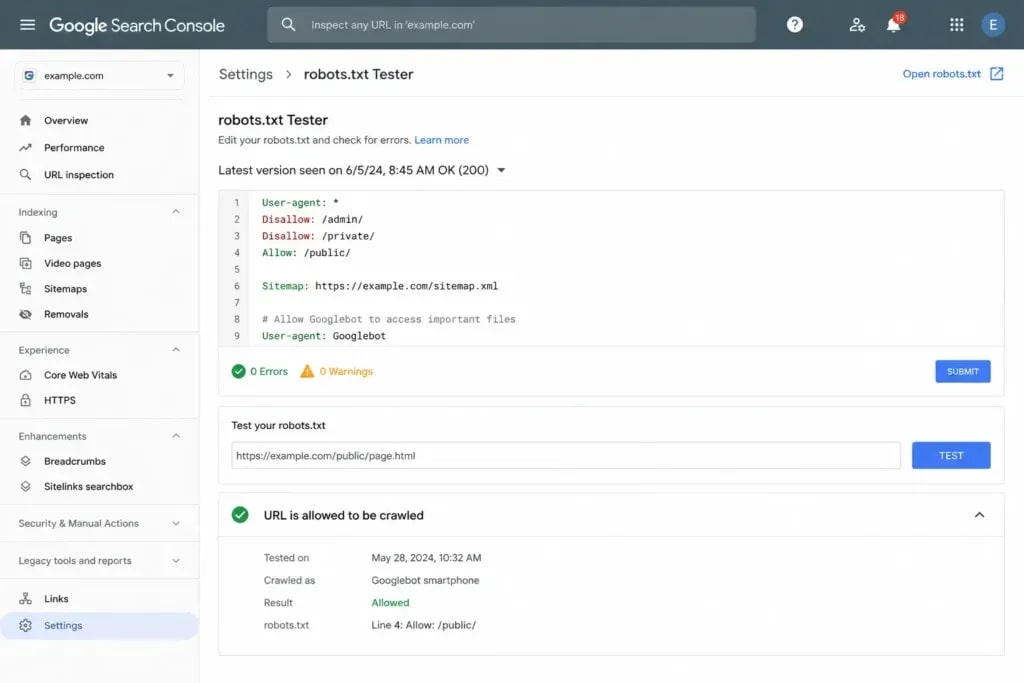
Google Search Console
- Open Google Search Console for your property.
- Go to Settings → robots.txt.
- Enter any URL from your site.
- The tester returns "Allowed" or "Blocked by robots.txt."
This is the most authoritative test available.
Screaming Frog
Run a crawl and filter by "Blocked by robots.txt." You'll see every URL your current rules affect, useful for catching wildcard rules that block more than intended.
Bing Webmaster Tools
Go to Diagnostics & Tools → robots.txt tester. Run this separately if you use crawl-delay, since Bing honors it and Google doesn't.
The SAFE Robots.txt Framework
Most robots.txt tutorials hand you syntax and examples and stop there. The SAFE Framework gives you a repeatable process for managing the file at any site size.
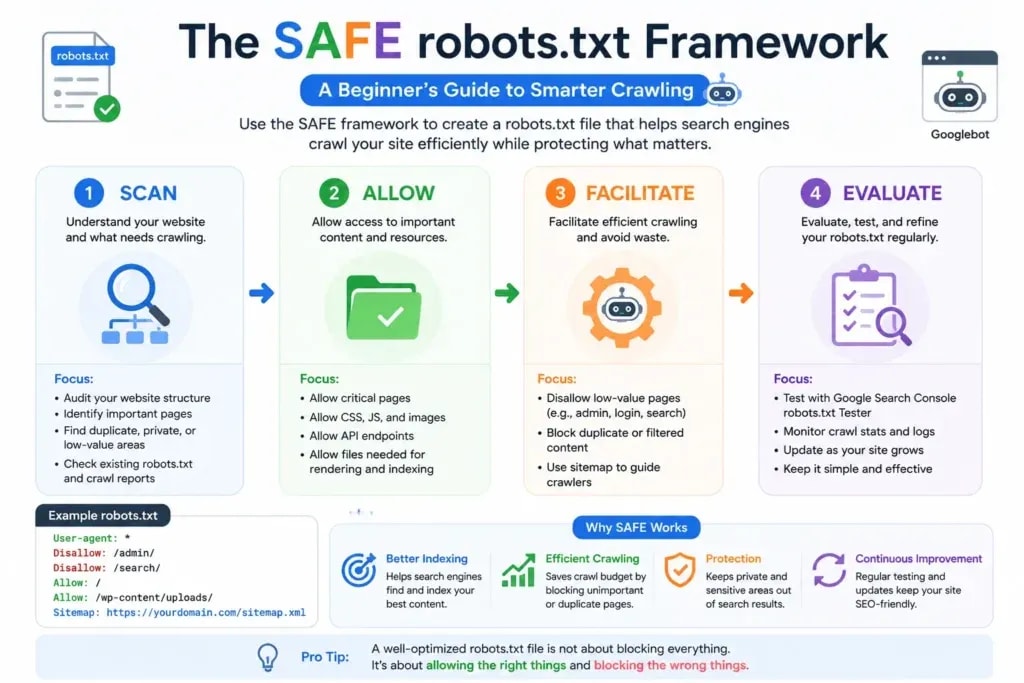
SAFE: Scan → Allow → Facilitate → Evaluate.
S - Scan Sensitive Areas
Before touching robots.txt, list what you want to protect from unnecessary crawling:
- Admin and login pages:
/wp-admin/,/login/,/admin/ - Internal search result pages:
/?s= - Thin or duplicate content: tag archives, author pages without original content
- Parameter-based near-duplicates:
?sort=,?page=,?ref= - Staging directories:
/staging/,/test/,/dev/
Write the list before writing a single directive.
A - Allow Important Content
Confirm what must remain accessible to crawlers:
- All core content: posts, pages, product pages, category pages
- Files required for rendering: CSS, JavaScript, web fonts, images
- WordPress paths like
/wp-admin/admin-ajax.phpif your theme requires it - Your sitemap file
If Google needs it to understand your site, don't block it.
F - Facilitate Crawler Efficiency
Write your rules with both goals in mind, block the noise, surface the signal:
- Group rules logically: admin blocks first, content blocks second, parameter blocks third
- Add your Sitemap directive at the bottom
- Use
#comments to explain any rule that isn't obvious - Avoid over-blocking. More restrictions don't automatically mean better crawl management
E - Evaluate and Test Regularly
Revisit your robots.txt:
- After site restructures
- After adding new content types or directories
- After installing plugins that add new URL patterns
- After Google core updates where you see unexpected drops in crawl stats
In Google Search Console, watch the Coverage report for pages moving to "Discovered but not indexed." That shift is sometimes a robots.txt problem.
10 Robots.txt Best Practices Every Beginner Should Follow
- Start minimal. Use an open robots.txt and add restrictions only when you understand what they do.
- Include your sitemap. Add
Sitemap:https://yourdomain.com/sitemap.xmlat the bottom of every file. - Never block CSS or JavaScript. Google renders pages like a browser. Block your stylesheets or scripts and your pages look broken.
- Test every change in Google Search Console. Don't guess.
- Don't use robots.txt to hide sensitive content. The file is public. Use server-side authentication instead.
- Be specific with paths.
/admin/is safer than/a, the second could accidentally block/about/. - Use Allow to create exceptions. If you disallow a directory, explicitly allow specific files within it that crawlers need.
- Set one User-agent block per crawler, or use
*for all. Don't mix rules inconsistently. - Review robots.txt after every major site update. New plugins and themes introduce URL patterns that may need managing.
- Know the crawling vs. indexing difference. Use robots.txt to block crawling. Use noindex to block indexing. They are not interchangeable.
Common Robots.txt Mistakes (and How to Fix Them)
Mistake 1 - Blocking the Entire Site
User-agent: * Disallow: /
This blocks every crawler from every page on your site. Many WordPress staging environments use this setting by default, and site owners forget to change it when they go live. Check your live robots.txt on launch day.
Mistake 2 - Trying to Hide Pages from Google
Block a page in robots.txt and Google can still index it from external links. You get a search result showing a bare URL with no description, no context, worse than allowing the crawl. Use a noindex meta tag to remove a page from search results.
Mistake 3 - Blocking CSS and JavaScript
Disallow: /wp-includes/ Disallow: /wp-content/
These directories contain your theme files, plugin scripts, and stylesheets. Block them and Google renders your pages as broken. Sites that made this mistake during Google's mobile-first index rollout saw ranking drops that took months to recover.
Mistake 4 - Case-Sensitive Errors
Robots.txt paths are case-sensitive on Linux servers, which power most web hosts. /Admin/ and /admin/ are different paths. If your directory is /Admin/ and your Disallow rule says /admin/, the rule does nothing.
Mistake 5 - Noindex Directives in Robots.txt
Some older guides tell you to add Noindex: /page/ directly in robots.txt. Google stopped supporting that directive in September 2019. It doesn't work. Put your noindex instruction in the HTML <head>: <meta name="robots" content="noindex">.

Robots.txt vs. Robots Meta Tag
Use robots.txt when you don't want Google to visit a URL. Use noindex when you don't want Google to show a URL in search results.
One trap to know: if you block a URL in robots.txt, Google can't read the noindex tag on that page. It may still index the URL from external links, giving you a low-quality result you didn't want.
Expert Insight: 5 Observations on Robots.txt and SEO
- Robots.txt is the first file Googlebot reads on your site, and most site owners have never looked at it. For a file capable of blocking your entire site from search, that's a costly oversight.
- Crawl budget is misunderstood at the small-site level. Google allocates budget based on crawl demand and server capacity. Robots.txt influences demand, not capacity. For sites under roughly 1,000 pages, crawl budget rarely limits anything.
- A minimal robots.txt often outperforms a complex one. Files with dozens of rules have more room for accidental blocks. For small-to-medium sites, a 3-5 line file with an open policy and a sitemap reference usually does more good than over-engineered restrictions.
- Blocking pages in robots.txt doesn't make them invisible, it makes them ambiguous. Google can index a blocked URL from external links alone. The result: a URL in search results with no description and no context. Allowing the crawl and using noindex gives Google cleaner information to act on.
- The robots.txt tester in Google Search Console is underused. Plugin updates, theme changes, and site migrations all carry the risk of overwriting the file. A monthly spot-check takes two minutes. Catching a bad block early beats months of traffic recovery.
Robots.txt Checklist Before Going Live
- [ ] File saved as
robots.txt, lowercase, no extra characters - [ ] File located at
yourdomain.com/robots.txt - [ ] File publicly accessible, confirmed in browser
- [ ]
User-agent: *block present - [ ] No
Disallow: /blocking the entire site - [ ] CSS and JavaScript directories not blocked
- [ ] Sitemap URL included and correct
- [ ] Tested in Google Search Console robots.txt tester
- [ ] Key content pages return "Allowed" in GSC test
- [ ] Admin and staging areas blocked
- [ ] No
Noindex:directives in the file - [ ] File ends with a blank line
Run through this technical SEO checklist after every major site change.
Your Robots.txt Is a Signal, Not a Lock
AI-powered search engines, Google's AI Mode, Perplexity, and others, check robots.txt to decide what content they're allowed to read and cite. A misconfigured robots.txt in 2026 doesn't just affect traditional rankings. It can prevent AI systems from ever seeing your content.
Open a browser tab right now and visit yourdomain.com/robots.txt. Read what's there. If you see Disallow: / without knowing why it's there, fix it today.
Then run the SAFE Framework on your own site. Scan, Allow, Facilitate, Evaluate. Twenty minutes now can prevent months of unexplained traffic drops later.
Robots.txt is a handful of lines. In SEO, a handful of lines can define your entire relationship with Google.
Frequently Asked Questions
What is a robots.txt file?
A robots.txt file is a plain text file at your website's root that tells search engine crawlers which pages to visit and which to skip. It follows the Robots Exclusion Protocol and is the first file most crawlers fetch when visiting your site.
Does robots.txt stop my page from appearing in Google?
No. It controls crawling, not indexing. To remove a page from Google search results, use a noindex meta tag or Google Search Console's URL removal tool.
What happens without a robots.txt file?
Google returns a 404 for the missing file and crawls your entire site. For most small sites, that's fine.
Can robots.txt block all search engines?
Yes. User-agent: * with Disallow: / blocks every compliant crawler from every page. Useful on staging sites, catastrophic if applied to a live site by mistake.
Where must robots.txt be located?
At the root of your domain: https://yourdomain.com/robots.txt . Not in a subfolder. Not on a subdomain unless that subdomain is a separate site.
What's the difference between robots.txt and the noindex meta tag?
Robots.txt controls whether Google visits a page. Noindex controls whether Google shows that page in search results. Block a page with robots.txt and Google can't read its noindex tag, the page may still get indexed from external links.
How do I test my robots.txt?
Use Google Search Console (Settings → robots.txt tester), visit yourdomain.com/robots.txt in a browser, or use Screaming Frog's robots.txt checker during a crawl.
Does robots.txt affect crawl budget?
Yes. Blocking low-value URLs, parameter pages, admin paths, duplicate archives, stops crawlers wasting budget on content that won't improve your rankings.
Is robots.txt a security feature?
No. The file is public and malicious bots can ignore it. Use server-side authentication to protect sensitive content.
How do I add my XML sitemap to robots.txt?
Add Sitemap: https://yourdomain.com/sitemap.xml on its own line at the bottom of the file. For WordPress with RankMath, the URL is usually sitemap_index.xml .
Sources and References

Written by
Bibek Thapa
AI-Powered Digital Growth Strategist
Bibek Thapa works across AI workflows, SEO, AI search optimization, content strategy, website growth, and productivity systems. Anobee documents practical lessons, tools, experiments, and systems for improving digital presence.
- AI workflows
- Digital growth
- SEO
- GEO
- AEO
- Content strategy
- Website growth


