

Setting up Rank Math means installing the plugin, connecting a free Rank Math account, running the Setup Wizard in Advanced mode, connecting Google Search Console, configuring your sitemap and schema defaults, then reviewing General Settings, Titles & Meta, and modules afterward. Done correctly, this takes about 20 minutes and covers most of the technical SEO your WordPress site needs on day one.
Most Rank Math tutorials stop at “click through the wizard and you’re done.” That’s the setup, not the strategy. What follows is the full picture: every wizard screen, every setting that matters after the wizard closes, and the AI-visibility layer that didn’t exist in older Rank Math guides because AI Overviews, AI Mode, and chatbot search simply weren’t part of the SEO conversation yet.
What Is Rank Math and Why Setup Accuracy Matters
Rank Math is a WordPress SEO plugin that manages titles, meta tags, XML sitemaps, schema markup, redirects, and technical SEO signals directly from your WordPress dashboard. It has grown into one of the most widely installed SEO plugins for WordPress, and its free tier alone covers ground that used to require three or four separate plugins.
Key Insight: Rank Math’s setup wizard determines your site’s baseline technical SEO for months, sometimes years, because most site owners never revisit it after the first pass.
That’s the real reason setup accuracy matters. A misconfigured sitemap or an indexed tag archive doesn’t announce itself with an error message. It just quietly caps how much of your site Google can efficiently crawl and understand, and it does the same to the AI crawlers now indexing content for ChatGPT search, Perplexity, and Google’s AI Overviews. Get the setup right once, and you’re not fighting your own plugin for the next two years.
What makes Rank Math different from older-generation SEO plugins is how much of the technical layer it consolidates into one interface. Before plugins like this existed, a typical WordPress SEO stack meant one plugin for sitemaps, another for schema, a third for redirects, and a fourth for local business markup, each with its own settings panel and its own way of quietly conflicting with the others. Rank Math folds all of that into a single connected system, which is useful, but it also means one wrong toggle can ripple across sitemap generation, schema output, and indexing behavior at the same time. That’s not a reason to be intimidated by it. It’s a reason to go through setup once, carefully, instead of clicking through screens on autopilot.
If you’ve inherited a WordPress site someone else set up years ago, it’s worth treating this guide as an audit checklist rather than a fresh-install walkthrough. Old Rank Math installs frequently carry forward defaults from whatever version was current when the site launched, and those defaults don’t always update themselves when the plugin does. Reviewing General Settings, Titles & Meta, and Modules against what’s covered below, even on a site that’s already “set up,” regularly surfaces two or three things worth fixing.
What’s Different About a 2026 Rank Math Setup
A setup guide written even two years ago would have stopped at Google Search Console and schema markup. Two things have changed since then that this guide accounts for directly. Google’s AI Mode now serves some queries with zero organic blue links at all, so AI citation isn’t a nice-to-have layered on top of classic SEO anymore. It’s a primary visibility channel in its own right for a growing share of searches. On top of that, AI crawlers from OpenAI, Anthropic, and Perplexity now generate meaningful, trackable traffic to well-structured sites, which means the robots.txt and structured-data decisions made during a Rank Math setup have consequences beyond Google’s own index. Neither change requires a fundamentally different plugin or workflow, but both mean the “set it and forget it” version of a setup guide leaves real visibility on the table.
Before You Install: Pre-Setup Technical Checklist
A few things need to be true before Rank Math can do its job well. Skipping this step is the single most common reason people end up re-doing their setup a month later.
- SSL certificate active. Your site should load on
https://, nothttp://. Rank Math’s schema and sitemap output assume a secure URL structure. - Permalink structure set to “Post name.” Go to Settings → Permalinks in WordPress and confirm this before installing Rank Math. Changing it afterward can break internal links Rank Math has already indexed.
- No conflicting SEO plugin left active. If you’re migrating from Yoast or All in One SEO, deactivate it (don’t delete it yet; Rank Math’s importer needs it active during the import step, then you deactivate it).
- A free Rank Math account ready. You’ll need an email address to connect during the wizard; several features stay locked without this connection.
Key Insight: Skipping the permalink check is the quiet cause of most “my URLs look wrong” support tickets, and it has nothing to do with Rank Math itself.
Installing and Activating Rank Math SEO
From your WordPress dashboard, go to Plugins → Add New, search “Rank Math SEO,” and install the plugin published by Rank Math (listed as an AI SEO tools plugin). Click Activate once installation finishes.
On activation, Rank Math typically redirects you straight to the connection screen. If it doesn’t, go to Rank Math SEO → Dashboard → Setup Wizard to launch it manually. This matters because some hosting environments cache the redirect and drop you back on the plugins page instead. If that happens, don’t reinstall; just go straight to the wizard.
Rank Math Setup Wizard: Step-by-Step Walkthrough
This is the sequence you’ll actually see, in order, using Advanced mode (recommended; more on why in a moment).
Step 1: Connect Your Rank Math Account
Click Connect Your Account. If you already have one, sign in and click activate; if not, register with your email. You can enable usage tracking here (optional, anonymous), or skip account connection entirely, but skipping locks several features, including some Content AI and Analytics functionality, so most sites should connect.
Step 2: Choose Easy, Advanced, or Custom Mode
This is the decision that shapes everything downstream.
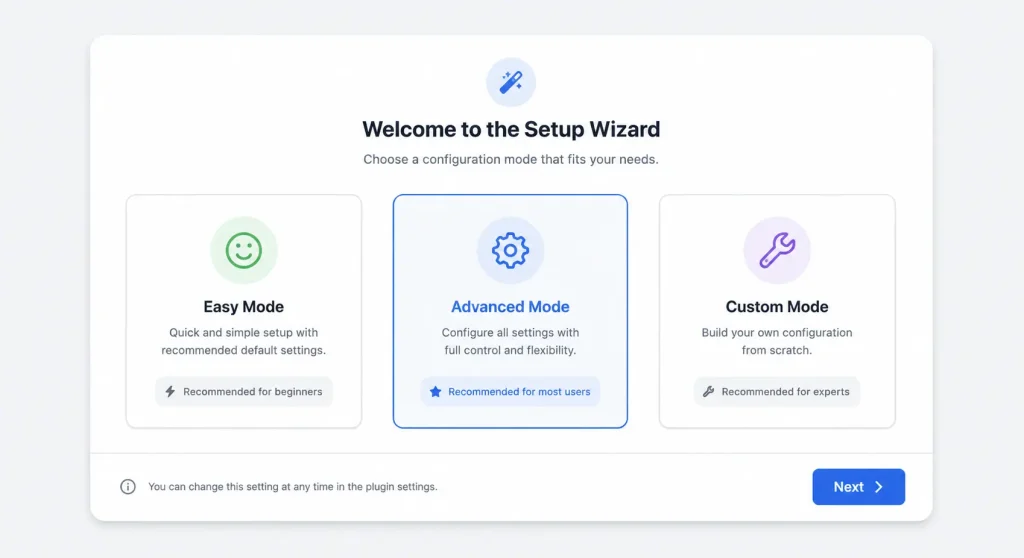
- Easy mode applies safe, opinionated defaults and hides advanced controls. Good for a personal blog you’ll never touch beyond publishing posts.
- Advanced mode exposes sitemap exclusions, schema type selection, and redirect configuration during the wizard itself, instead of forcing you to find them later in scattered settings pages.
- Custom mode applies a saved Rank Math configuration file, mostly relevant to agencies rolling out a standard setup across client sites, and currently limited to Pro users.
Key Insight: Easy mode doesn’t disable advanced settings permanently, it just hides the wizard screens for them. You can always reach the same controls later inside Rank Math SEO → General Settings and Rank Math SEO → Titles & Meta.
Choose Advanced mode if you’re reading a setup guide this detailed. If you just want the plugin to work and never plan to touch schema or redirects, Easy mode is fine and won’t hurt you.
Step 3: Website Type and Business Details
Select your site type: blog, business, online store, news, portfolio, and so on. This single choice pre-configures a chunk of your schema defaults, so pick the closest match rather than the most flattering one. A local service business site should select business/local, not blog, even if the content strategy leans heavily on blog posts.
You’ll also enter your site name, upload a logo, and set a default social sharing image. These feed directly into your Organization schema and Open Graph tags, so use a properly sized logo (square, minimum 112x112px) rather than skipping this field.
Step 4: Google Search Console Integration
Open Google Search Console and connect your Google account, then select the matching property from the Site dropdown. This step alone saves you a separate manual verification later, since Rank Math can insert the verification meta tag automatically once connected.
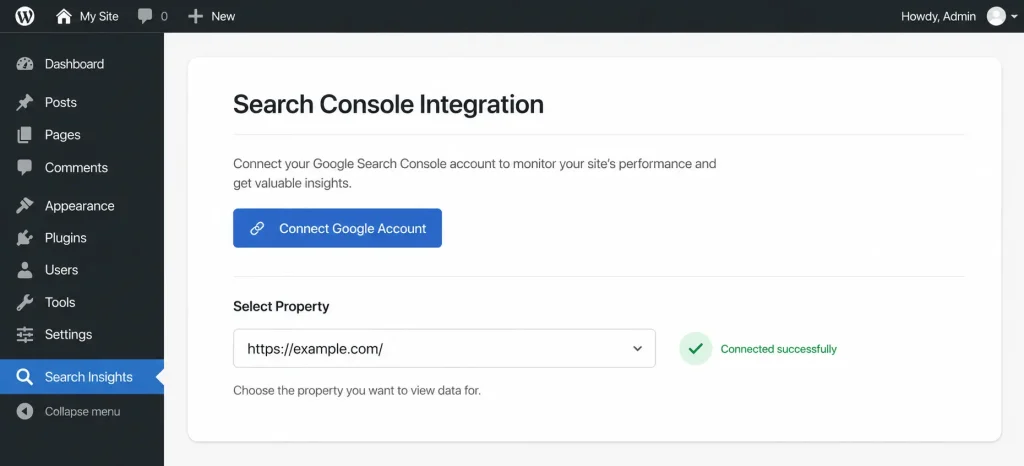
If you’re on Rank Math Pro, you’ll also see a target Country dropdown here, which feeds into your Analytics filtering. Free users can skip this field.
Key Insight: Connecting Search Console during the wizard, not after, avoids the common problem of forgetting the manual verification step entirely and discovering months later that Rank Math’s Analytics tab has no data to show.
Step 5: Sitemap Configuration
Choose which content types generate sitemap entries: typically posts and pages at minimum, plus any custom post types (products, portfolio items) your theme or plugins register. Rank Math recommends enabling only one taxonomy archive type in your sitemap; if categories are already enabled, tags usually don’t need their own sitemap entry, since it just duplicates the same content under a different URL pattern.
Step 6: SEO Tweaks (Noindex Settings)
Rank Math offers a batch of recommended noindex toggles here, typically for archive pages, search result pages, and paginated duplicate content. Accepting the defaults is safe for most beginners; they exist specifically to prevent thin-content and duplicate-content issues before they start.
Step 7: Redirections and 404 Monitor
Decide whether to enable the Redirections module (for mapping old URLs to new ones when you delete content or change slugs) and the 404 Monitor (which logs broken URLs hitting your site so you can fix them). Both are useful long-term but add small amounts of ongoing database activity. Enable them if you expect to restructure URLs at some point, which most active sites eventually do.
Step 8: Schema Markup Defaults
The final wizard screen lets you assign a default schema type per content type: Article schema for blog posts, Product schema for WooCommerce items, and so on. This default applies automatically to new content, saving you from manually assigning schema to every single post.
Once this step completes, click Save and you’re dropped into the Rank Math Dashboard. The wizard is done. The real configuration work is what comes next.
Real-World Example: Setting Up Rank Math for a Local Service Business
Abstract settings advice is easy to nod along to and hard to actually apply, so here’s how the wizard plays out for a specific, common case: a local plumbing company with a five-page WordPress site and a blog they update maybe twice a month.
During Step 3, they select “Business” as the website type, not “Blog,” even though most of the actual content strategy going forward is blog posts about water heater maintenance and pipe repair costs. That choice matters because it seeds the correct LocalBusiness-oriented schema defaults instead of generic Article defaults. Their logo gets uploaded at 512x512px, well above Rank Math’s stated minimum, because a low-resolution logo looks noticeably soft once it’s pulled into knowledge panel previews.
In Step 5, they enable sitemap entries for Pages and Posts, but leave Tags off entirely, since the site has never used tags in any structured way and only categories organize the blog. In Step 6, they accept the default noindex recommendations without modification. Because there’s only one person writing content, the author archive gets manually noindexed afterward in Titles & Meta, since it’s a straight duplicate of the blog index page.
After the wizard, the Local SEO module gets enabled, and the business address, phone number, and hours get entered to match the Google Business Profile listing exactly, down to the abbreviation style (“St” versus “Street”), because that consistency is what search engines use to confirm it’s the same business across sources. Analytics stays disabled; the owner checks Search Console directly instead, since the business doesn’t publish frequently enough to justify the added database overhead.
Total setup time for this configuration: about eighteen minutes, most of it spent double-checking the NAP details against the Google Business Profile listing rather than clicking through the wizard itself.
Migrating from Yoast SEO to Rank Math Without Losing Rankings
If you’re moving off Yoast rather than starting fresh, the sequence matters more than most guides let on, because doing it out of order is how sites lose meta descriptions and accumulate duplicate schema.
Keep Yoast active during the import. Install Rank Math but don’t deactivate Yoast yet. During the Rank Math setup wizard, there’s an import step (found under Rank Math SEO → Status & Tools → Import & Export if you skipped it in the wizard) that pulls titles, meta descriptions, focus keywords, and any schema data Yoast had stored, mapping it into Rank Math’s own fields.
Run the import, then verify before deactivating. Spot-check five or six posts, comparing what shows in Rank Math’s editor sidebar against what Yoast previously had saved. It’s rare, but not unheard of, for a custom meta field or an unusual schema type to not map cleanly.
Deactivate Yoast only after verification. Running both plugins active at once causes duplicate meta tags in your page source, which confuses Google about which title and description to trust, and it’s a common cause of the “wrong title showing in search results” complaint people bring to WordPress support forums weeks after a botched migration.
Resubmit your sitemap. Rank Math generates its sitemap at a different URL structure than Yoast’s, typically /sitemap_index.xml instead of /sitemap.xml or /sitemap_index.xml depending on Yoast’s version. Submit the new URL in Search Console even if the old one is still technically resolving, and consider removing the old sitemap submission once the new one shows as successfully processed.
Key Insight: The rankings risk in a plugin migration almost never comes from the new plugin itself. It comes from the overlap window where both plugins are active and fighting over the same meta tags.
Best Rank Math General Settings After the Wizard
The wizard covers maybe 60% of what actually matters. Head to Rank Math SEO → General Settings and work through these tabs.
Links Settings
Decide how Rank Math handles external links: nofollow by default, open in a new tab, or leave untouched. Most content-driven sites leave external links as-is (dofollow, same window) unless there’s a specific reason to nofollow them, like affiliate disclosure requirements. If your content strategy includes affiliate links, this is also where you’d typically apply a sitewide nofollow or sponsored attribute rule rather than tagging each link manually inside every post. It’s worth setting up once, correctly, rather than retrofitting across dozens of published articles later.
Image SEO Settings
If you’re on Rank Math Pro, enable automatic alt attribute generation using your focus keyword and image title as fallback text. Free users need to add alt text manually per image, which is worth budgeting time for since missing alt text is one of the most common accessibility and image-SEO gaps on WordPress sites. Beyond alt text, this is also where you’d confirm image file naming conventions if you’re batch-uploading. A folder of images named IMG_4021.jpg through IMG_4045.jpg gives search engines nothing to work with, while descriptive, hyphenated file names give both Google Images and AI multimodal systems real context before they even reach the alt attribute.
Breadcrumbs Settings
Turn on Rank Math’s breadcrumbs and, if your theme supports it, insert the breadcrumb shortcode into your template. Breadcrumbs improve both user navigation and feed directly into BreadcrumbList schema, which Google uses to build the breadcrumb trail shown under your listing in search results.
Webmaster Tools Verification
Add verification codes for Bing Webmaster Tools and any other search engines you’re targeting beyond Google. This is a small step most guides skip entirely, and it takes under two minutes if you already have the accounts set up.
Titles & Meta Settings for Maximum CTR
Go to Rank Math SEO → Titles & Meta. This is where your search snippet appearance gets defined, and it’s worth more attention than most beginners give it.
Homepage Title and Meta
Set a homepage title and meta description manually rather than letting WordPress auto-generate one from your tagline. Include your primary value proposition and, if relevant, your location or niche specificity. This is the single highest-visibility snippet your site produces, since it’s the one most likely to appear for branded searches, so it’s worth treating as actual copywriting rather than a default template field.
Posts, Pages, and Products
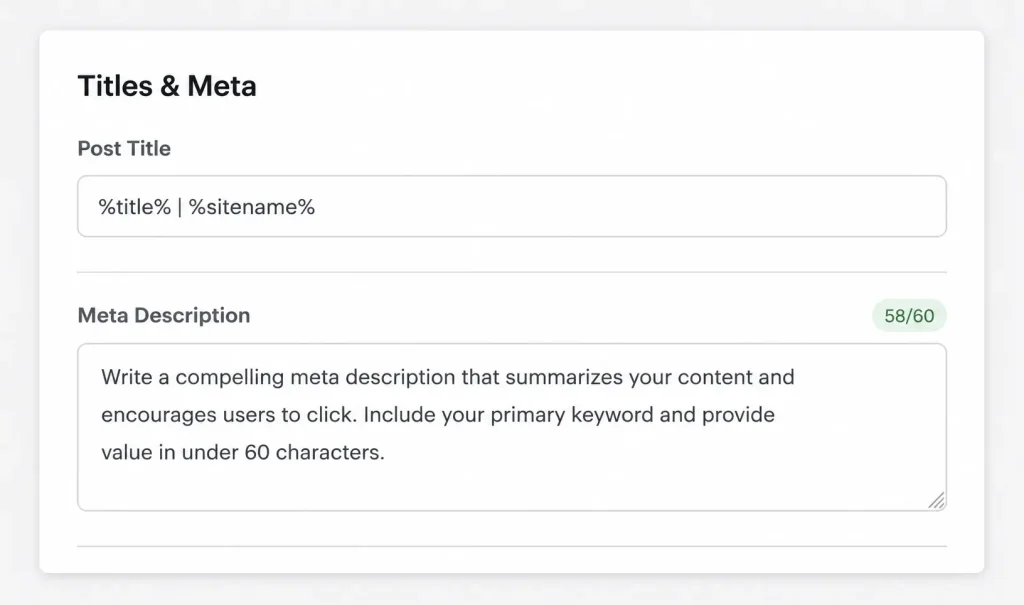
Rank Math lets you build title and meta patterns using variables (%title%, %sitename%, %sep%, and so on), so you’re not manually typing a title structure into every single post. A common, effective pattern is %title% %sep% %sitename%. For product pages on a WooCommerce store, a pattern like %title% - %sep% Buy Online at %sitename% can outperform the generic default in click-through rate, though it’s worth testing rather than assuming, since audience expectations vary by niche and price point.
Taxonomies (Categories and Tags)
Decide whether category and tag archive pages should be indexed at all. If your categories function as real landing pages with unique intros and curated content, index them. If they’re just auto-generated post lists, noindexing them prevents thin-content dilution.
Author Archives and Noindex Strategy
Key Insight: On a single-author blog, the author archive page is almost always a duplicate of your homepage or blog index in Google’s eyes. Noindex it unless you’re running a true multi-author publication where author pages serve as real bios with unique value.
Miscellaneous Pages (404, Search, Date Archives)
Noindex your internal search results pages and date-based archives by default. These pages rarely have search intent behind them and commonly trigger duplicate-content flags when left indexed.
Schema Markup Setup: Winning Rich Results
Choosing Default Schema Types
Beyond the wizard’s basic assignment, go into individual post types and confirm the schema still matches the actual content. A recipe post needs Recipe schema, not generic Article schema, even if Article was the wizard default for your whole blog.
Matching schema type to content type sounds obvious written out, but it’s the single most common schema mistake found on real WordPress sites. A few patterns worth knowing:
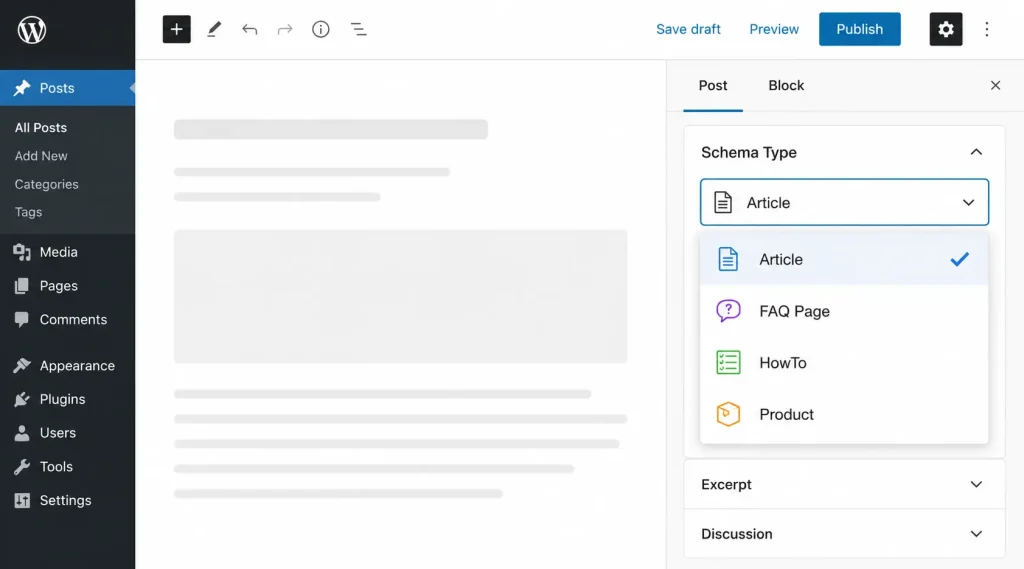
- Article vs. BlogPosting: Rank Math defaults most blog content to Article schema, which is broadly acceptable, but BlogPosting is the more precise type for straightforward blog-format content and can be worth switching to on a content-heavy site where precision helps entity clarity.
- FAQPage: only apply this to pages with real question-and-answer content visible on the page itself. Google has tightened enforcement here, and FAQ schema on pages without matching visible FAQ content risks a manual schema violation rather than a rich-result boost.
- HowTo: works well for truly sequential, numbered-step content, but skip it on content that’s more conceptual than procedural; forcing HowTo schema onto a listicle that isn’t actually a step-by-step process tends to produce a rich result that doesn’t match user expectations, which increases bounce rather than clicks.
- Review and AggregateRating: these require real review data behind them; schema without real underlying ratings is one of the more commonly flagged structured-data violations in Search Console.
Schema Templates for Recurring Content
If you regularly publish the same content type with structured data (video tutorials, FAQs, product reviews), build a Schema Template once (Rank Math SEO → Schema Templates → Add New) and reuse it, adjusting only the specific fields each time. This saves meaningful setup time on a content-heavy site and keeps your schema consistent, which matters for entity clarity.
Validating Schema with Google’s Rich Results Test
After configuring schema, run a handful of published URLs through Google’s Rich Results Test. This catches missing required fields before they quietly cost you rich-result eligibility for weeks.
Key Insight: Schema that validates in the Rich Results Test is also schema that AI crawlers parse more reliably. Clean structured data isn’t just a Google Search feature, it’s foundational GEO infrastructure.
XML Sitemap Setup and Search Console Integration
Configuring Sitemap Settings
Under Rank Math SEO → Sitemap Settings, confirm the content types and taxonomies you enabled during the wizard are still correct, and set how many URLs appear per sitemap file (the default of 200 works for most sites; very large sites may need to lower this).
Submitting Your Sitemap to Search Console
Your sitemap will typically live at yourdomain.com/sitemap_index.xml. Submit this exact URL in Google Search Console under Sitemaps, and do the same in Bing Webmaster Tools if you connected it earlier.
Monitoring Index Status
If you enabled the Index Status tab during the wizard, check Rank Math SEO → Analytics → Index Status periodically to see which pages Google has and hasn’t indexed, along with whether unindexed pages have been discovered or crawled yet. This gives you a faster diagnostic loop than waiting on Search Console’s own reporting delay.
Rank Math Modules: Which Ones to Enable
Go to Rank Math SEO → Dashboard → Modules. Every module you enable adds functionality, and most also add some amount of ongoing database activity, so enable deliberately rather than turning everything on.
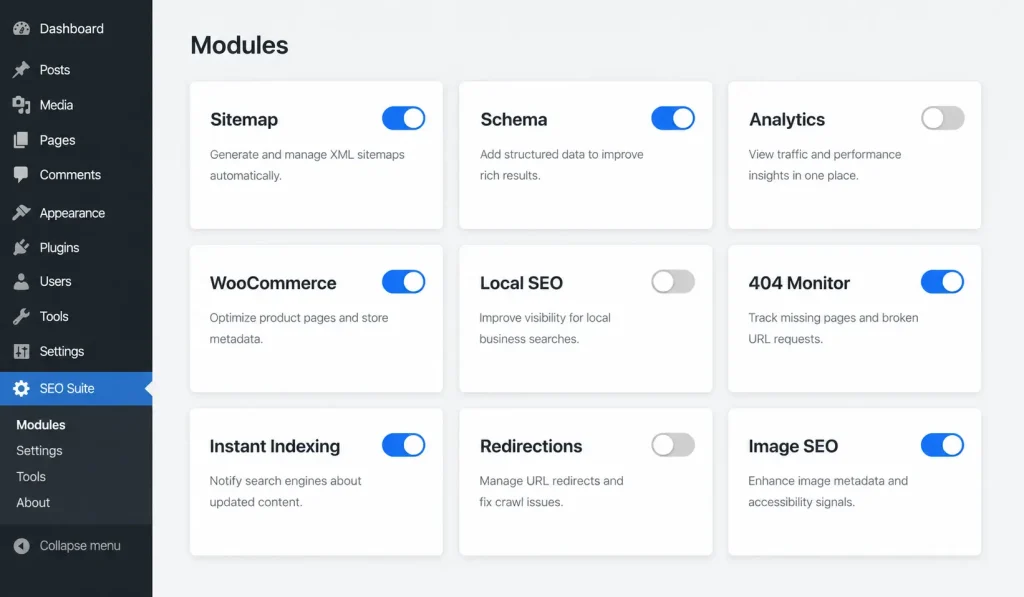
Essential Modules for Every Site
- Sitemap
- Schema (Structured Data)
- Titles & Meta (on by default, can’t be disabled)
Modules for WooCommerce Stores
- WooCommerce SEO: adds Product schema, review schema, and store-specific title variables.
- Image SEO: particularly valuable for product galleries where consistent alt text at scale matters.
Modules for Local Businesses
- Local SEO: enables LocalBusiness schema, opening hours markup, and Knowledge Graph API fields.
- KML File in Sitemap (only relevant if Local SEO module is active).
Modules to Avoid (Database Bloat Risks)
- Analytics: pulls Search Console, Analytics, and AdSense data directly into WordPress, which is convenient but adds ongoing database writes. If you’re comfortable checking Search Console directly, disabling this module keeps your database leaner.
- 404 Monitor: useful during a migration or redesign, but worth disabling once you’ve cleared your redirect backlog, since it logs every broken hit indefinitely if left running.
Key Insight: The modules causing the most complaints about WordPress slowdown are almost never the schema or sitemap modules. They’re the ones quietly logging data in the background, like Analytics and 404 Monitor, running long after their usefulness peaked.
Quick Module Reference Table
| Module | Recommended For | Watch For |
|---|---|---|
| Sitemap | Every site | Duplicate taxonomy entries if both categories and tags are enabled unnecessarily |
| Schema | Every site | Missing required fields per schema type |
| WooCommerce SEO | Online stores | Variable product URL duplication |
| Local SEO | Brick-and-mortar and service-area businesses | NAP mismatches with Google Business Profile |
| Instant Indexing | Frequently updated or news-style sites | Google doesn’t participate in IndexNow; benefit is strongest for Bing |
| 404 Monitor | Sites mid-migration or redesign | Indefinite logging if left on after cleanup |
| Redirections | Any site expecting URL changes | Redirect rules silently inactive if the module itself is off |
| Analytics | High-traffic sites checking data daily | Ongoing database writes on shared hosting |
Rank Math Content AI and AI SEO Tools
Rank Math’s Content AI module (Pro-tier, with limited free credits) sits inside the post editor and offers keyword research, content scoring against top-ranking competitors, and AI-assisted outline generation. It’s useful for competitive gap analysis (showing which entities and subtopics top-ranking pages cover that yours doesn’t), but it should inform your outline, not write your final draft. Content that reads as AI-generated without real expertise layered on top now gets flagged under Google’s AI content quality assessment, so treat Content AI’s output as research, not a finished article.
In practice, the most useful part of the module isn’t the generation feature at all, it’s the content scoring panel that compares your draft against a set of top-ranking pages for the same keyword and flags entities or subtopics you haven’t addressed yet. Used that way, it functions closer to a research assistant doing competitor gap analysis than a ghostwriter, which is the healthier way to use any AI writing tool inside a plugin that also has to answer to Google’s own AI content policies.
Rank Math Pro: Is It Worth It in 2026?
The free version covers most small-site needs, so the Pro upgrade decision comes down to a few specific features rather than a general “more is better” calculation.
Pro adds: multiple focus keywords per post (up to five, versus one on free), advanced schema types like Video and Course, Google Trends integration inside the keyword research flow, deeper Content AI credits, WooCommerce-specific SEO analysis, and role manager controls for agencies managing client access.
Key Insight: The upgrade tends to pay for itself fastest on content-heavy sites publishing weekly or more, where the multi-keyword targeting and expanded Content AI credits get used constantly, and tends to be unnecessary on a five-page brochure site that publishes twice a month.
If you’re a solo blogger or a small local business with a lean content calendar, the free tier’s Local SEO, 404 Monitor, Redirections, and 20+ schema types already outperform most competing plugins’ free tiers, and Pro’s added features may sit unused. If you’re running an agency managing several client sites, or a content operation publishing at real volume, the multi-keyword targeting alone often justifies the cost within the first few optimized posts.
Rank Math vs Yoast SEO: Which Should You Choose in 2026
| Factor | Rank Math (Free) | Yoast SEO (Free) |
|---|---|---|
| Focus keywords per post | 1 | 1 |
| Schema types | 20+ built in | Limited, mostly Article/Organization |
| 404 Monitor | Included free | Premium only |
| Redirections | Included free | Premium only |
| Search Console integration | Built in | Not included |
| Content AI | Limited free credits | Not available |
| Local SEO module | Included free | Premium only |
Key Insight: The practical difference in 2026 isn’t feature depth (Yoast has been around long enough to cover the basics well). It’s that Rank Math bundles redirection management, a 404 monitor, and Local SEO into its free tier, features that require Yoast Premium.
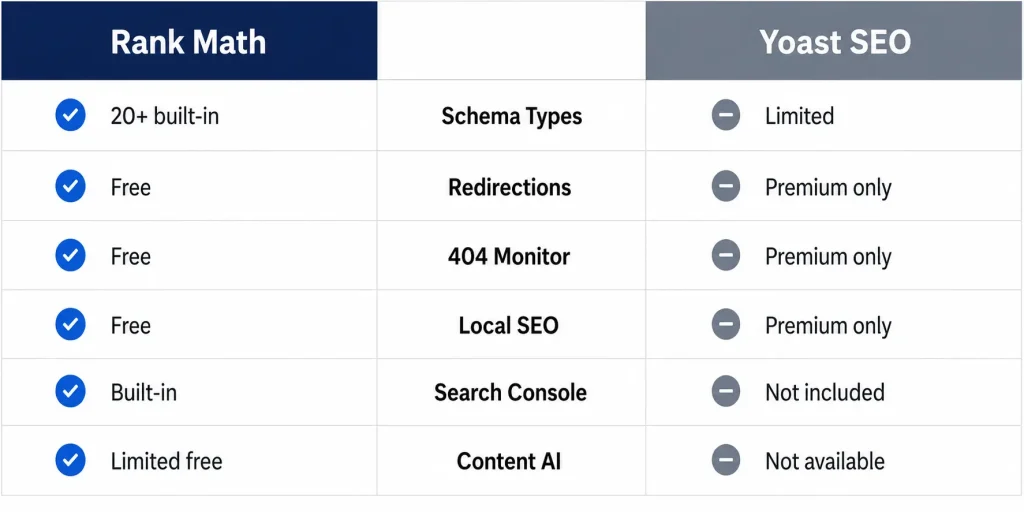
If you’re already deep into a Yoast setup with years of data behind it, migrating isn’t always worth the disruption. If you’re starting fresh, Rank Math’s free tier covers more ground without a subscription.
That said, plugin choice matters less than plugin discipline. A Yoast site with a careful noindex strategy, clean schema, and a submitted sitemap will outperform a Rank Math site running on unreviewed defaults every time. The plugin is the toolset, not the strategy. This entire guide applies the same underlying SEO logic regardless of which plugin executes it, which is worth remembering if you’re switching mainly because a competitor’s blog post told you to.
WooCommerce SEO Setup in Rank Math
Enable the WooCommerce SEO module, then go to WooCommerce → Settings and confirm Product schema is assigning correctly to a handful of test products. Set your default product title pattern to include the product name and brand, and confirm review schema is pulling star ratings correctly if your store collects reviews. Product category pages should generally stay indexed here (unlike blog category pages) since they function as real commercial landing pages with real search demand behind them.
A few store-specific details are easy to miss during a general setup pass. Out-of-stock products still generate a live URL by default, and if that page stays indexed with no purchase path, it’s a soft dead end for both users and crawlers. Decide upfront whether out-of-stock products should stay indexed with a clear “back in stock” message or noindex temporarily until inventory returns. Variable products (a T-shirt in five colors and four sizes, for instance) can generate a surprising number of near-duplicate URLs if variations aren’t configured carefully, so it’s worth checking whether your theme creates separate URLs per variation or handles them client-side within a single product page, since that changes what actually needs schema and sitemap inclusion. Product review schema specifically requires an aggregate rating field to validate cleanly in the Rich Results Test, so a product page with zero reviews yet will often throw a schema warning until either reviews accumulate or the rating field is conditionally excluded.
Local SEO Setup in Rank Math
Enable the Local SEO module and fill in your business name, address, phone number, and opening hours exactly as they appear on your Google Business Profile. Consistency between these two sources is what NAP (Name, Address, Phone) matching depends on. Connect the module to your Knowledge Graph settings so LocalBusiness schema outputs correctly, and double-check your business type selection matches the closest Schema.org category rather than a generic default.
For multi-location businesses, the setup gets more involved than the module’s default single-location fields suggest. Each location generally needs its own LocalBusiness schema instance tied to a dedicated location page, rather than one Organization-level schema block trying to represent every branch at once. Search engines and AI systems alike struggle to disambiguate multiple physical addresses crammed into a single schema entity. If you’re managing more than two or three locations, this usually means supplementing Rank Math’s default Local SEO module with per-page manual schema overrides for each location page, since the module’s wizard-level fields are built around a single-location assumption.
Setting Up Rank Math Analytics and Search Console Reports
If you’ve enabled the Analytics module, connect Search Console and Google Analytics under Rank Math SEO → Analytics → Settings. This surfaces keyword rankings, click-through rate, and traffic trends inside your WordPress dashboard without switching tabs. If you’d rather avoid the database overhead this module adds, skip it and pull the same data directly from Search Console. The underlying numbers are identical either way.
The dashboard view earns its keep for site owners who check performance daily and don’t want the extra step of opening a separate Search Console tab each time. For anyone checking performance weekly or less often, the convenience rarely outweighs the added database writes, and Search Console’s own interface, plus its free API access for anyone comfortable building a lightweight reporting dashboard elsewhere, covers the same ground without asking WordPress to store a running copy of the data.
Instant Indexing Setup (IndexNow Protocol)
Enable the Instant Indexing module, then generate an API key under Rank Math SEO → Instant Indexing → Settings. This connects to the IndexNow protocol (supported by Bing and, with growing relevance, other search engines) and pings your new URL the moment you hit publish, rather than waiting for a crawler to discover it naturally.
Key Insight: Instant Indexing shortens time-to-discovery, but it doesn’t guarantee indexing. Google still evaluates the page on its own merits, so this setting speeds up crawling, not ranking.
Google itself doesn’t currently participate in the IndexNow protocol the way Bing does, so this module’s biggest practical benefit shows up in Bing’s index, and by extension, in AI systems like Copilot that draw on Bing’s index rather than Google’s directly. For sites that publish time-sensitive content, breaking news, event pages, limited-time promotions, the speed advantage is worth the two minutes it takes to set up, even accounting for that limitation.
404 Monitor and Redirection Setup
Check Rank Math SEO → 404 Monitor periodically for broken URLs generating real traffic, and create 301 redirects for the ones worth saving under Rank Math SEO → Redirections. Prioritize redirecting URLs with existing backlinks or consistent organic traffic. Not every dead URL needs a redirect, but the ones carrying link equity absolutely do.
A useful habit here is reviewing the 404 log on a schedule rather than reactively, weekly during an active content migration, monthly otherwise. Left unchecked for months, the log accumulates entries from bots probing for common WordPress vulnerability paths alongside real broken internal links, and separating the two manually gets tedious fast. Filtering the log by hit count first surfaces the URLs actually worth spending redirect effort on, since a 404 hit once by a scanning bot doesn’t need the same attention as one hit fifty times by real visitors following an old bookmark or an external backlink that was never updated.
Optimizing for AI Visibility: llms.txt and AI Crawler Access
This is the layer most Rank Math tutorials still skip entirely, and it’s becoming one of the more consequential parts of a 2026 setup.
Start by confirming your robots.txt file isn’t accidentally blocking AI crawlers. GPTBot, ClaudeBot, PerplexityBot, and OAI-SearchBot each need explicit allow rules if you want your content eligible for citation in ChatGPT search, Claude, and Perplexity responses. Some security plugins block these crawlers by default under generic “bot protection,” so check that configuration separately from Rank Math.
Beyond that, it’s worth implementing an llms.txt file at your site root. This is a plain-text file that gives AI systems a prioritized map of your most valuable, citation-ready content, similar in spirit to how robots.txt guides traditional crawlers. Rank Math doesn’t generate this file natively as of this writing, so it typically needs to be created manually or through a lightweight custom implementation.
Your schema markup matters here too. Keep it clean and keep your Organization/Person schema consistent, since AI systems weigh entity clarity heavily when deciding which source to cite, and inconsistent business names or missing sameAs links back to your social profiles make that harder for them to confirm.
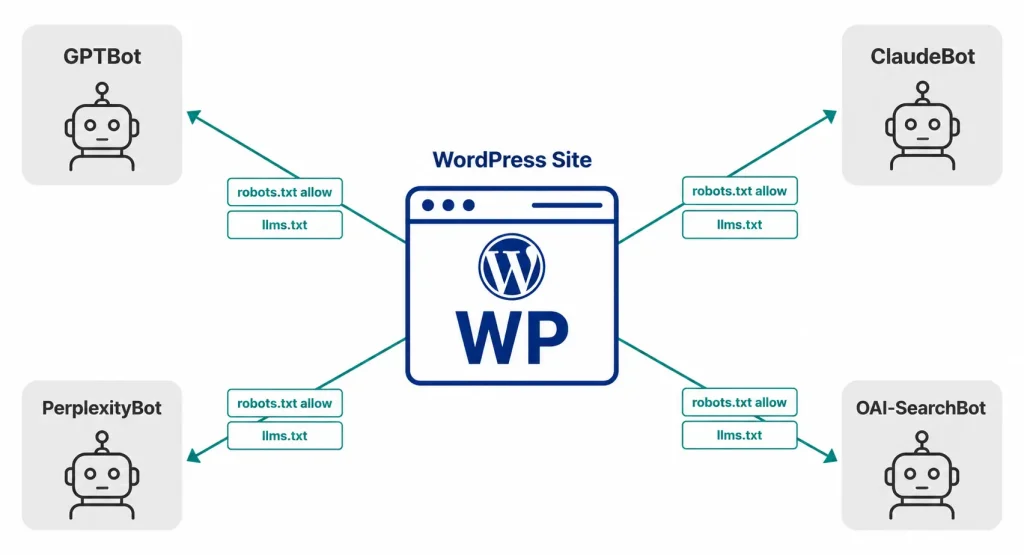
And structure matters as much as permission. AI crawlers and AI Overview systems tend to extract content most reliably from pages with a clear direct-answer sentence near the top of each section, real heading hierarchy (not headings used purely for visual styling), and tables or lists for anything comparative, which is exactly the AEO formatting pattern used throughout this guide. Granting crawler access without that structure gets your page crawled. It doesn’t necessarily get it cited. The two need to happen together.
Rank Math and Site Speed: What to Watch
Rank Math itself is a relatively lightweight plugin, but a careless setup can still add measurable overhead, and Core Web Vitals remain part of how Google evaluates page experience.
The Analytics module is the most common culprit. It runs periodic database queries to pull Search Console and Analytics data into your dashboard, and on a shared hosting plan with limited resources, that’s occasionally enough to show up in server response time. The 404 Monitor has a similar profile if left running indefinitely rather than being disabled once a post-migration redirect cleanup is finished. Neither module causes a dramatic slowdown on its own, but they’re worth disabling if you’re already fighting for every millisecond of Time to First Byte on a budget host.
Schema markup itself has effectively no performance cost. JSON-LD is small, cacheable, and doesn’t block rendering. The same goes for XML sitemaps, which generate on a schedule rather than on every page load in most configurations. If a site speed audit points to Rank Math as a bottleneck, it’s almost always a specific module choice rather than the plugin’s core functionality, which makes the fix a settings change rather than a plugin switch.
Multisite and Multilingual Considerations
WordPress Multisite networks need Rank Math configured per subsite rather than once globally. Each site in the network runs its own wizard, its own sitemap, and its own module selection, since a franchise location’s LocalBusiness schema shouldn’t inherit from a completely unrelated site on the same network.
For multilingual sites built with a plugin like WPML or Polylang, Rank Math generally needs each language version treated as its own set of Titles & Meta patterns, since a title pattern using %title% %sep% %sitename% still needs a translated separator and sitename in some cases. Hreflang tags, which tell Google which language version corresponds to which, are typically handled by the multilingual plugin itself rather than Rank Math directly, so the two need to be checked together rather than assumed to work automatically in tandem. A sitemap that includes URLs from multiple languages without corresponding hreflang annotations is a common gap on multilingual WordPress builds, and it’s worth a dedicated audit pass separate from the standard Rank Math setup covered here.
The S.E.T.U.P. Framework: A System for Configuring Rank Math
Proprietary Framework
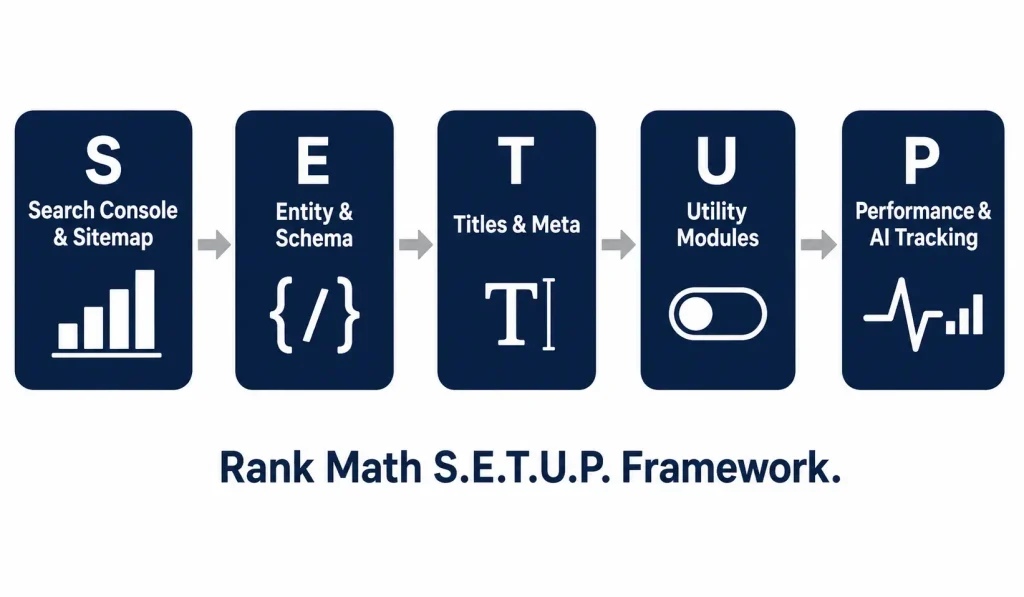
A memorable way to sequence everything above, built specifically for this configuration process:
- S (Search Console & Sitemap): connect Search Console, confirm your sitemap content types, and submit it immediately.
- E (Entity & Schema): assign accurate schema per content type and validate it with the Rich Results Test.
- T (Titles & Meta): build your title/meta patterns with variables, and decide your noindex strategy for archives.
- U (Utility Modules): enable only the modules your site type actually needs (WooCommerce, Local SEO, Redirections) and skip the ones that just log data quietly.
- P (Performance & AI Tracking): monitor Index Status, review 404s periodically, and confirm AI crawler access alongside your standard Search Console monitoring.
Run through S.E.T.U.P. once at initial setup, then revisit the “P” stage monthly. It’s the only phase that requires ongoing attention rather than a one-time configuration.
Measuring Setup Success: KPIs to Track After Setup
Configuration isn’t the finish line, it’s the baseline you measure against. A handful of numbers tell you whether the setup actually worked within the first thirty to sixty days.
- Indexed pages versus total pages. Compare the count in Search Console’s Pages report against your actual published content. A wide gap usually points back to a sitemap or noindex misconfiguration from setup.
- Coverage errors trend. Check weekly for the first month. A properly configured sitemap and clean noindex strategy should show this number flattening out, not growing.
- Rich result eligibility. Search Console’s Enhancements section will show whether your schema types (FAQ, Product, LocalBusiness, whichever you configured) are actually being recognized at scale, not just passing a single-page Rich Results Test.
- 404 log volume. If you enabled the 404 Monitor, a spike here after launch usually means an old URL structure wasn’t fully redirected during a migration.
- AI crawler activity. Server logs or a security plugin’s bot-traffic report can confirm whether GPTBot, ClaudeBot, and PerplexityBot are actually reaching your site, which is the only real way to verify the robots.txt allowlisting from setup is working as intended.
Key Insight: Most setup problems surface within the first two weeks in Search Console’s Coverage report. The mistake isn’t usually the setup itself, it’s not checking back until months later when the gap has compounded across dozens of new posts.
Common Rank Math Setup Mistakes to Avoid
- Leaving tag and date archives indexed: creates duplicate, thin content that dilutes topical authority signals. This is the single most frequent issue found when auditing an existing Rank Math install.
- Running two SEO plugins simultaneously: causes conflicting meta tags and duplicate sitemaps; always deactivate the old plugin after importing its data.
- Skipping the Rich Results Test after schema setup: silent schema errors can sit unnoticed for months, quietly costing rich-result eligibility the whole time.
- Enabling every module “just in case”: adds unnecessary database overhead without corresponding SEO benefit, and makes the modules dashboard harder to reason about later.
- Never revisiting settings after the wizard: the wizard is a starting point, not a permanent configuration; plugin updates occasionally introduce new settings that default to off.
- Selecting the wrong website type in Step 3: this single choice seeds your default schema, and picking “Blog” for what’s actually a local service business means retrofitting LocalBusiness schema manually later.
- Uploading a low-resolution logo: it feeds directly into Organization schema and knowledge panel previews, where a blurry or oddly cropped image is more visible than most site owners expect.
- Forgetting to resubmit the sitemap after a plugin migration: Rank Math’s sitemap URL structure often differs from whatever plugin was previously in place, and Search Console won’t automatically pick up the change.
Advanced Rank Math Settings for SEO Professionals and Agencies
For agencies managing multiple client sites, Rank Math’s Custom mode setup wizard (Pro) lets you save a configuration file and apply consistent settings across new installs, cutting repetitive setup work significantly. Pair this with Schema Templates for recurring content types and a standardized redirect-mapping workflow during migrations, and a full client site setup drops from a multi-hour task to something closer to twenty minutes of review.
Role Manager, also a Pro feature, is worth setting up on any client site where the client or their internal team will eventually log in and edit content themselves. Rather than giving every logged-in user full access to Titles & Meta, schema settings, and modules, Role Manager restricts what each user role can see and change inside Rank Math, which meaningfully reduces the odds of a well-meaning content editor accidentally disabling the sitemap module six months after handoff. For agencies billing ongoing SEO retainers, this also draws a cleaner line between what the agency configures and what the client team is allowed to touch day to day.
On larger sites with dozens of authors or a mixed content team, it’s also worth standardizing the Titles & Meta variable patterns before onboarding writers rather than after, since retrofitting a consistent title structure across hundreds of already-published posts is a bulk-editing project nobody enjoys starting late.
Rank Math Setup Checklist
Print this, screenshot it, or keep it open in a second tab while you work through the plugin. It condenses everything above into the order you’d actually execute it in, rather than the order the topics were explained in.
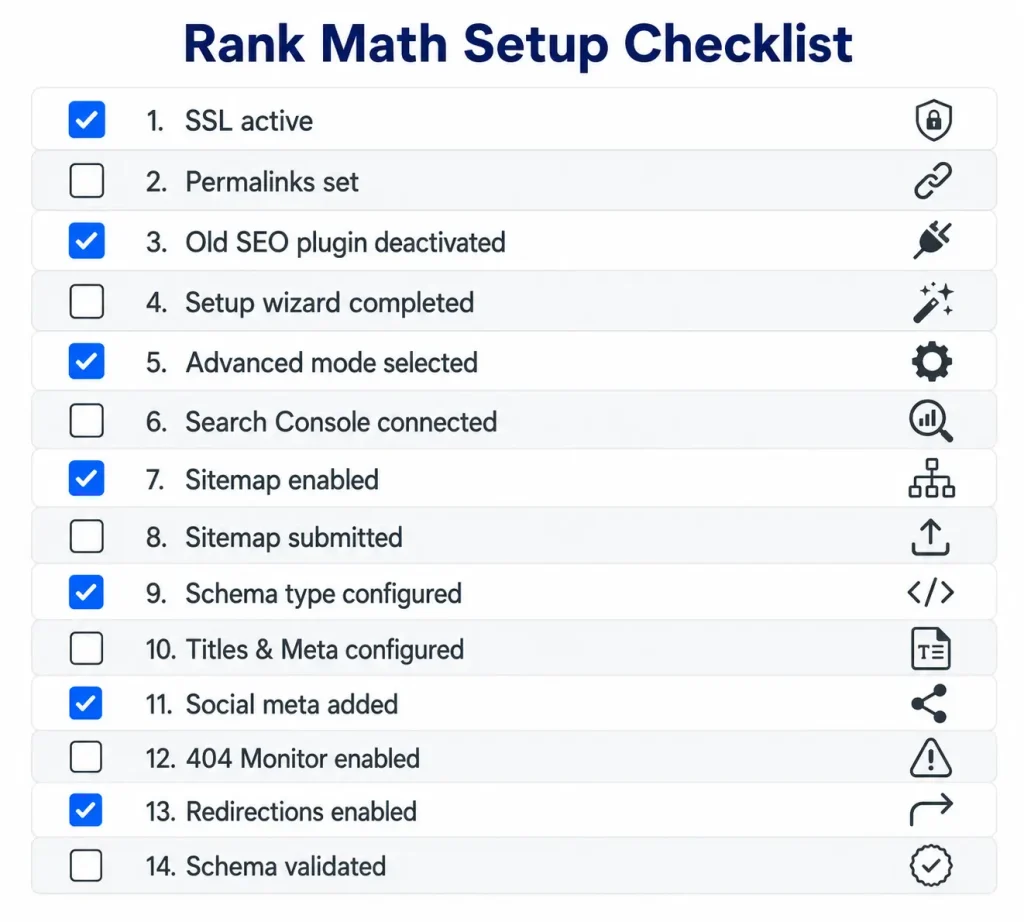
- [ ] SSL active and permalinks set to “Post name” before installing
- [ ] Old SEO plugin data imported, then old plugin deactivated
- [ ] Rank Math account connected
- [ ] Advanced mode selected in the wizard
- [ ] Correct website type selected, logo and social image uploaded
- [ ] Google Search Console connected and verified
- [ ] Sitemap content types confirmed and submitted to Search Console
- [ ] Noindex applied to tag archives, author archives (single-author sites), search results, and date archives
- [ ] Schema type assigned per content type and validated with Rich Results Test
- [ ] Only necessary modules enabled (WooCommerce/Local SEO if relevant, Analytics/404 Monitor deliberately chosen)
- [ ] Titles & Meta patterns set using variables
- [ ] Breadcrumbs enabled and inserted into theme template
- [ ] AI crawler access confirmed in robots.txt (GPTBot, ClaudeBot, PerplexityBot, OAI-SearchBot)
- [ ] Instant Indexing configured if IndexNow support is desired
Troubleshooting Common Rank Math Issues
Sitemap shows as empty or missing content types: Check Rank Math SEO → Sitemap Settings and confirm the relevant post type toggle is on, and separately confirm the Sitemap module itself is enabled under Modules.
Schema not appearing in Rich Results Test: Usually a missing required field. Check the specific schema type’s requirements on Schema.org and fill any blank fields Rank Math left empty by default.
SEO score stuck at N/A after migrating from another plugin: Run Recalculate SEO Scores under Rank Math SEO → Status & Tools → Database Tools to force a rescan.
Search Console shows no data in the Analytics tab: Confirm the Analytics module is enabled and that you connected the correct Search Console property during setup. A mismatched property is the most common cause.
Focus keyword suggestions look generic or off-target: This usually means Content AI’s research pull is using a broad match rather than your actual audience intent. Refine by adding a more specific seed phrase rather than a single broad keyword.
Two title tags showing on the same page: Almost always a leftover conflict from a second SEO plugin, a theme with its own built-in title output, or a caching plugin serving a stale cached version of the page. Clear the site cache after any Titles & Meta change before assuming it hasn’t taken effect.
Redirects not working after setup: Confirm the Redirections module is actually enabled under Modules. It’s a separate toggle from creating the redirect rule itself, and it’s easy to write a redirect rule that silently does nothing because the module was never switched on.
Breadcrumbs not showing on the front end: Enabling breadcrumbs in General Settings only makes the shortcode or template function available; most themes still need the breadcrumb code manually inserted into the theme template, or the shortcode placed in the content, before anything displays.
Is Rank Math free to use?
Yes. Rank Math’s free version includes XML sitemaps, schema markup for 20+ types, one focus keyword per post, and a 404 monitor, features that require premium plugins elsewhere.
Do I need both Rank Math and Yoast SEO?
No. Running two SEO plugins simultaneously causes duplicate meta tags and conflicting sitemaps. Deactivate one before activating the other, and use Rank Math’s built-in importer to migrate your data first.
Why is my Rank Math sitemap not showing content?
Usually because the relevant content type (posts, pages, or a custom post type) isn’t enabled in Sitemap Settings, or the sitemap module itself is toggled off in the modules dashboard.
Should I use Easy mode or Advanced mode in the setup wizard?
Advanced mode, if you expect to touch schema, redirects, or sitemap exclusions later. Easy mode applies safe defaults but hides controls you’ll likely want within your first month.
Does Rank Math slow down my WordPress site?
Not meaningfully on its own, but modules you don’t use, particularly Analytics, add database queries over time. Disable modules you’re not actively using to keep performance clean.
Final Thoughts
Rank Math’s setup wizard gets you most of the way there in about ten minutes. The remaining work (schema validation, module discipline, noindex strategy, and AI crawler access) is what separates a site that’s technically “set up” from one that’s actually positioned to rank in Google and get cited by AI search. None of it is complicated on its own. It’s just easy to skip when a wizard tells you you’re finished.
Treat this as a living configuration rather than a one-time task. Plugin updates add new fields, your content strategy shifts toward new post types, and the AI-search landscape itself is still moving quickly enough that a setting that didn’t matter in 2024 (like AI crawler access) matters quite a bit now. Revisiting the S.E.T.U.P. framework’s “P” stage on a monthly cadence is a small enough habit that it fits into an existing Search Console check, and it’s the difference between catching a sitemap gap in week two versus discovering it in month six after dozens of posts went quietly unindexed.