SEO & AI Search
Robots.txt Guide for Beginners: What Google Actually Supports
By Bibek Thapa · Updated · 12 min read
Quick Answer
Robots.txt sits at the root of your site and tells crawlers which paths to request. Google supports four fields only: user-agent, allow, disallow and sitemap. It ignores crawl-delay. The file must be under 500 KiB, and it manages crawling rather than indexing, so it is not the way to keep a page out of search results.
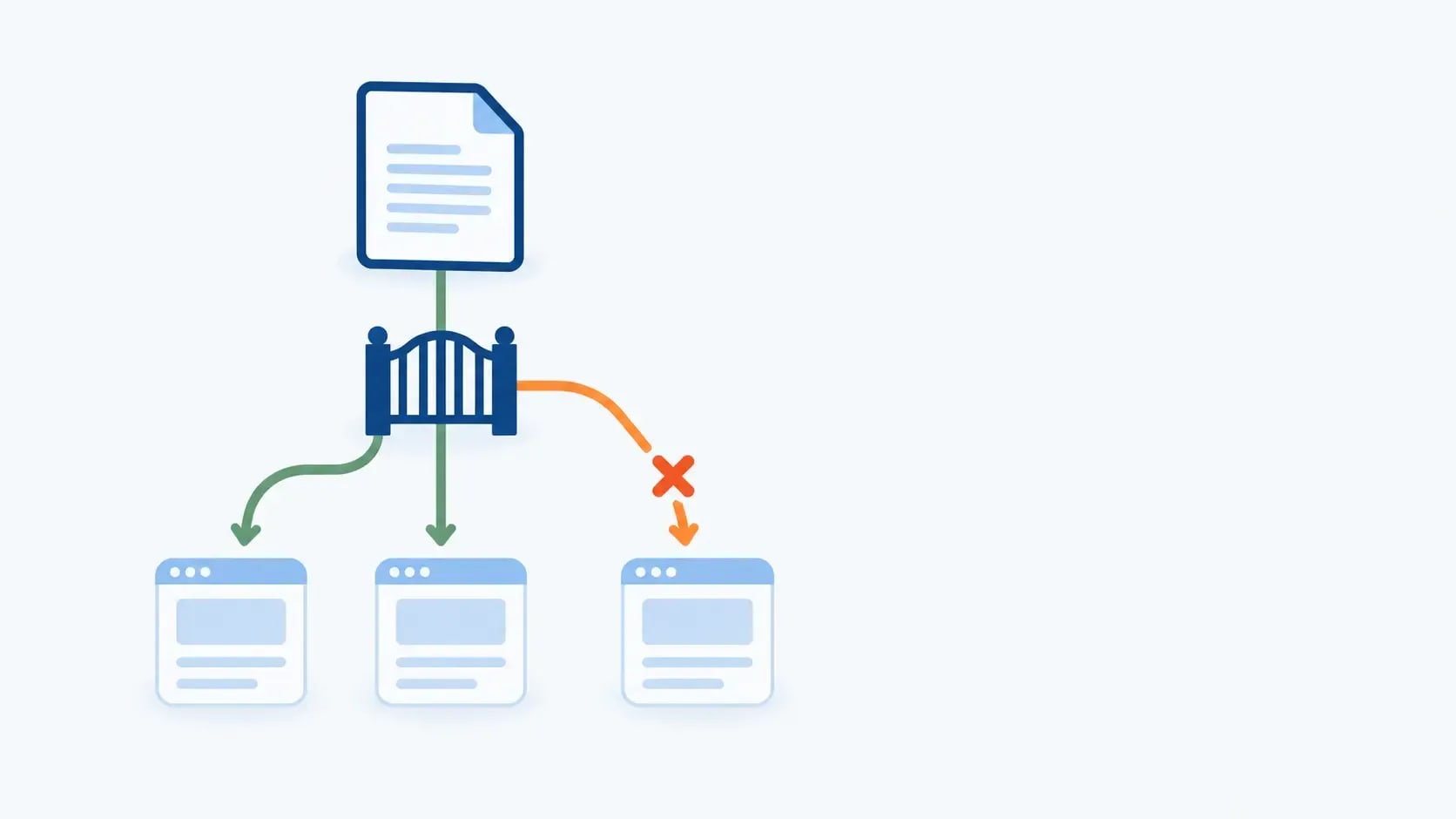
Table of ContentsOn this page
Key Takeaways
- Google supports four robots.txt fields: user-agent, allow, disallow and sitemap. Everything else is ignored.
- Crawl-delay is not supported by Google, so putting it in your file changes nothing for Googlebot.
- Google stops reading a robots.txt file after 500 kibibytes. Anything past that point is ignored.
- Robots.txt controls crawling, not indexing. A blocked page linked from elsewhere can still appear in results.
- The old robots.txt Tester is gone. Use the robots.txt report for the file and URL Inspection for a single URL.
- Wildcards are supported: * matches any run of characters and $ marks the end of the URL.
Two instructions in the previous version of this robots.txt guide would not have worked.
It listed Crawl-delay in the syntax section as something to use sparingly, then contradicted itself later by noting Google ignores it. Google's specification is unambiguous: the supported fields are user-agent, allow, disallow and sitemap, and "other fields such as crawl-delay aren't supported" [1].
It also told readers to open Search Console, go to Settings, then robots.txt, enter a URL, and read back "Allowed" or "Blocked". That was the old robots.txt Tester, which no longer exists. The report that replaced it shows which files Google fetched and what it found, but it has no URL box. Testing a single URL is a different tool now, so the testing section below has been rewritten.
One thing the guide never mentioned is worth adding: Google stops reading the file after 500 kibibytes [1].
What a robots.txt file is
It is a plain text file at the root of your domain, and the first thing most crawlers request. It lists which paths a given crawler may or may not fetch.
The important word is fetch. Robots.txt is a crawling instruction, not an indexing one, and that distinction causes more damage than any syntax error.

What it cannot do
Google's guidance says not to use it to hide pages from search results. A disallowed page that another site links to can still be indexed, typically appearing without a description [2].
If you need a page kept out of search, use a noindex meta tag on a page Google is allowed to crawl, or put it behind a password. Blocking and noindexing the same URL cancels itself out, because the crawler never sees the noindex it was told to obey.
The four fields Google supports
This is shorter than most guides suggest. Google's specification lists exactly four [1]:
| Field | What it does |
|---|---|
user-agent | Names which crawler the following rules apply to |
disallow | A path the named crawler should not fetch |
allow | A path the named crawler may fetch, used to carve an exception out of a disallow |
sitemap | The absolute URL of your XML sitemap |
Anything else is parsed and ignored. Crawl-delay is named in Google's own documentation as an example of an unsupported field [1]. Bing does honour it, so the line is not meaningless everywhere, but it does nothing for Googlebot. If Google is crawling too aggressively, the lever is server response time, not a directive Google skips.
Wildcards
Two characters are supported [1]:
*matches zero or more instances of any valid character$marks the end of the URL
Disallow: /*?*        # any URL containing a query string
Disallow: /*.pdf$     # any URL ending in .pdf
Wildcards are where accidental over-blocking happens. A pattern that reads narrowly often matches far more than intended, so test them before you publish.
The size limit
Google enforces a limit of 500 kibibytes and ignores content past that point [1]. Almost no site approaches this. A file long enough to worry about it usually has rules that belong in a canonical tag or a noindex instead.
A minimal robots.txt that works
Most sites need very little:
User-agent: *
Disallow:

Sitemap: https://yourdomain.com/sitemap.xml
That allows everything and points crawlers at your sitemap. An empty Disallow: means nothing is blocked, which is different from Disallow: /, which blocks the entire site.
Add the sitemap line even if you already submitted the sitemap in Search Console. It costs nothing, and it helps crawlers that never see your account.
The SAFE approach
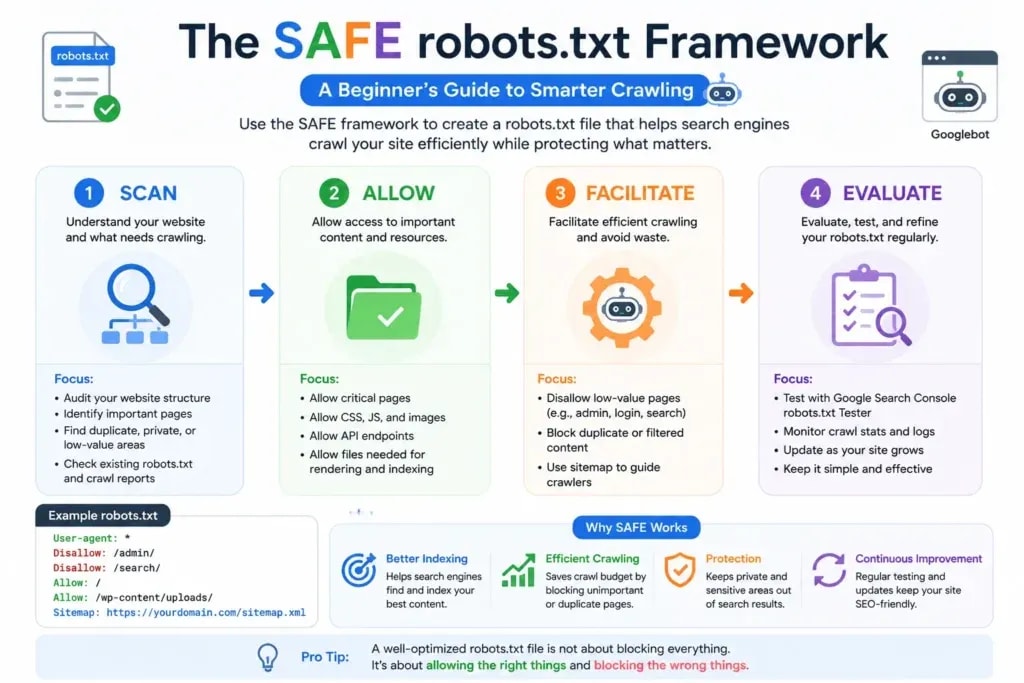
Most tutorials hand you syntax and stop. This is a repeatable order for managing the file at any size: Scan, Allow, Facilitate, Evaluate.
Scan sensitive areas. Before touching the file, list what genuinely does not need crawling: admin and login paths, internal search result pages, parameter-based near-duplicates such as ?sort= and ?filter=.
Allow what matters. Never block CSS or JavaScript your layout depends on. Google permits blocking unimportant resource files, but only where pages load acceptably without them [2]. Block the stylesheet that renders your page and the site becomes unreadable to Google while looking fine to you.
Facilitate discovery. Add the sitemap line. Keep the file short enough to read in one screen.
Evaluate after every change. Which is the next section, and the part that changed most.
How to test robots.txt now
The robots.txt Tester that most guides still describe has been retired. Three things replaced it.
The report, in Search Console under Settings. It shows which files Google found, when it last fetched each one, the status returned, and any parsing issues [3]. That tells you what Google is reading, which is the question that matters after a deployment.
URL Inspection, for a single URL. Search Console's help points here for testing whether a specific URL is blocked [3]. Paste the URL, run the live test, and read the crawl section of the result.
Google's open source robots.txt library, for testing locally before anything ships [3]. This is the same parser Google uses, so it settles disputes about whether a wildcard does what you think.
Test after every change, and check the file again after plugin updates, theme changes and migrations, because all three can overwrite it silently.

Examples by site type
A blog
User-agent: *
Disallow: /wp-admin/
Allow: /wp-admin/admin-ajax.php
Disallow: /?s=

Sitemap: https://yourdomain.com/sitemap.xml
An online store
User-agent: *
Disallow: /cart/
Disallow: /checkout/
Disallow: /account/
Disallow: /*?sort=
Disallow: /*?filter=

Sitemap: https://yourstore.com/sitemap.xml
Blocking cart and checkout is standard. Blocking faceted parameters keeps crawlers out of a combinatorial maze. If those URLs are already indexed, a canonical tag handles it better than a late block.
Robots.txt or the robots meta tag
These solve different problems and are constantly confused.
| Item | Robots.txt | Robots meta tag |
|---|---|---|
| Controls | Whether a page is crawled | Whether a crawled page is indexed |
| Lives | One file at the domain root | In the <head> of each page |
| Keeps a page out of search? | No [2] | Yes, with noindex |
| Requires crawling to work? | No | Yes |
The rule that follows: if you want something out of the index, it must stay crawlable long enough for Google to read the noindex.

What to check before going live
- File saved as
robots.txt, lowercase, at the domain root - Returns a 200 status when you request it directly
- No accidental
Disallow: /left over from staging - CSS and JavaScript not blocked
- Sitemap line present and pointing at a live sitemap
- Wildcards tested against real URLs
- File comfortably under 500 KiB [1]
- Checked again after the next deployment
A staging Disallow: / reaching production is the single most damaging robots.txt mistake, and the technical SEO mistakes guide covers where it usually comes from.
Common mistakes
- Using it to hide pages. It manages crawling, not indexing [2].
- Adding crawl-delay for Google. Explicitly unsupported [1].
- Blocking CSS or JavaScript. Google then cannot render the page as a visitor sees it.
- Blocking a page you also want deindexed. The crawler never reads the noindex.
- Trusting a plugin to leave it alone. Updates and migrations overwrite it.
- Writing a long file. More rules means more room for an accidental block.
Bottom line
Robots.txt is a short file with four working fields, and most sites need five lines of it. The errors that hurt come from asking it to do a job it cannot do, which is keeping pages out of search, or from copying directives that Google reads and discards. Write the minimum, keep CSS and JavaScript crawlable, point at your sitemap, and check the robots.txt report after every deployment rather than trusting that nothing touched the file.
Frequently Asked Questions
Which directives does Google support in robots.txt?
Four fields: user-agent, allow, disallow and sitemap. Google's specification states plainly that other fields, such as crawl-delay, are not supported. Anything else you write is parsed and ignored, so it neither helps nor breaks the file.
Does Google respect crawl-delay?
No. Google's robots.txt documentation lists crawl-delay explicitly as an unsupported field. Bing does honour it, so the line is not useless on every crawler, but it has no effect on Googlebot. To reduce Google's crawl rate, fix the underlying server response times rather than adding a directive Google ignores.
Can robots.txt stop a page appearing in Google?
No, and this is the most common misunderstanding. Robots.txt manages crawler traffic. Google's guidance says not to use it to hide pages from search, because a disallowed page that another site links to can still be indexed, usually appearing without a description. Use a noindex meta tag on a crawlable page, or password protection.
How do I test my robots.txt file now?
Search Console has a robots.txt report under Settings that shows the files Google fetched, when it fetched them, and any issues found. To test whether one specific URL is blocked, use the URL Inspection tool. For local testing before you publish, Google maintains an open source robots.txt library.
How big can a robots.txt file be?
Google enforces a limit of 500 kibibytes and ignores everything after it. That is far more than most sites need, and a file long enough to approach the limit is usually a sign of rules that should be handled another way.
Sources and References
Was this guide helpful?
Your answer helps Anobee improve future updates.

Written by
Bibek Thapa
AI-Powered Digital Growth Strategist
Bibek Thapa works across AI workflows, SEO, AI search optimization, content strategy, website growth, and productivity systems. Anobee documents practical lessons, tools, experiments, and systems for improving digital presence.
- AI workflows
- Digital growth
- SEO
- GEO
- AEO
- Content strategy
- Website growth